Salix Startup Guide · Chapter 4 of 6
Your Salix
Package Management
Installing applications (which roughly equates to “installing packages”) is a fundamental part of the Linux experience. A Linux distribution, such as Salix (or Slackware, on which it is based) could be said to consist of its repositories, where the software available for that distribution is kept. These packages have been compiled with the kernel and build tools provided by the distribution and tested to ensure they work together. Salix, like most distros (but not Slackware) provides full dependency management, which means that any items the package needs to run are installed too – and also that they are guaranteed to be available.
Installing extra software is also possible through flatpaks and
Flathub. Just navigate to the software you wish to
install and press the “Install” button on the webpage. If your browser
defaults to downloading the .flatpakref file instead of opening it, just
open the Downloads folder and double-click it inside your file manager.
You can also create and install your own packages, for which Salix
provides a suite of console scripts, especially slkbuild; for
further information, see the wiki pages on packaging. When installing
packages from any other source, proceed with caution.
slackbuilds.org (SBo) provides build scripts for further
software not present in the repositories. This means the package will be
built on your system before being installed. Salix provides a command-lie tool,
slapt-src, for this purpose. But it has limited dependency management, as
not dependencies are listed at SBo. Therefore the build
is not guaranteed to be successful and some manual tinkering may be needed.
Unlike the software provided in the repositories, these scripts are not
maintained by either Salix or Slackware but by individual users, and as
such are not the responsibility of either distribution, although help may
be found on the forum. If the build fails, the last ten lines or so of the
output usually provide an indication of the reason. Most commonly, this is
a missing dependency, which may be a build dependency (needed to compile
the package, but not to run it). Common packages that are required by
several SlackBuilds, but not included as part of a standard Salix
installation are cmake and linuxdoc-tools, so first make sure
you have these installed if you encounter any problems.
If you don’t mind using a bit of extra space on your hard drive, then
most of these problems could disappear by installing the slackware/d
and slackware/l package sets:
sudo slapt-get --install-set slackware/d --install-set slackware/l
However, you shouldn’t really need to revert to SBo often, if at all. The Salix repositories offer thousands of packages and even more are available through Flathub.
You need to have superuser privileges in order to install or upgrade packages.
Gslapt
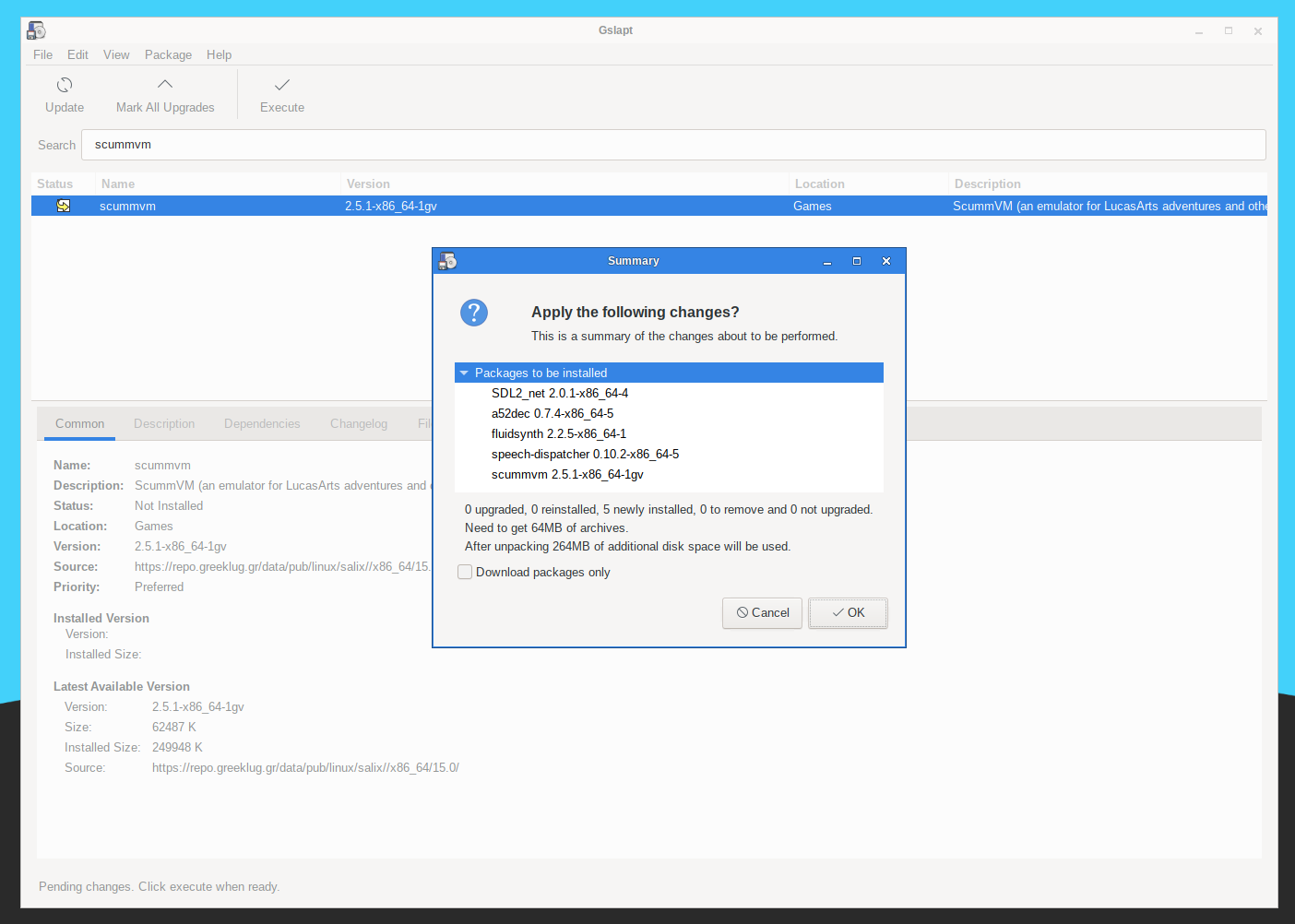
Gslapt is the GUI version of slapt-get. It allows one to search Slackware/Salix mirrors for packages. Before use you should first click on the Update button to ensure that the latest updates from the software repositories are known to Gslapt. The search field is there for you to search for a particular package. You can highlight with your left click and choose to install/uninstall/reinstall packages with a right click. Gslapt detects dependencies and will install all the dependency files for a package automatically. Installation, uninstallation or reinstallation of packages (whichever applies) will take place once you click on the Execute button. You can blacklist packages by adding their names to the blacklist found in “Preferences” under “Edit”.
On first installing Salix, you should also do a general package upgrade to ensure your installed system is up to date with the repositories – click on “Mark all upgrades”, then “Execute”.
Package management from the command line
slapt-get and slapt-src are the basic command-line tools used for installing packages. Gslapt provides a GUI for slapt-get. This section describes their use from the command line, along with the flatpak command line tool which is used to install software that comes in flatpaks.
slapt-get
slapt-get is a command line tool for Slackware package management. It allows one to search Slackware/Salix mirrors for packages, compare them with installed packages, install new packages, or upgrade all installed packages. To use the application, open a Terminal window and first issue the command
sudo slapt-get -u
in order to update the package database on your computer. Then
slapt-get -l
to list all the available packages,
slapt-get --search [package name]
to search for a package, and
sudo slapt-get -i [package name]
to install a package. For more command line instructions, please refer to
slapt-get --help
Here is a little exercise for you. Try installing w3m which is a terminal based web browser, by using slapt-get.
slapt-src
slapt-src is a command line tool that makes the process of downloading and building software packages from SBo simple and easy. SBo keeps a large collection of build scripts for extra packages that are still not available from the official Salix / Slackware repositories. Thousands of extra packages are now available to users through this tool.
To use the application, type in
sudo slapt-src -u
first to update on your computer the list of build scripts available from Slackbuild.org.
slapt-src -l
shows you a list of available packages, and as in slapt-get,
sudo slapt-src -i [package name]
will build and install a package. For more command line instructions, please refer to
slapt-src --help
When a package is available both in the Salix repositories and from SBo, the Salix package is preferred. See Slackbuilds in Salix Repositories for why, and for how to build the SBo version instead.
spkg
If you would like to install or upgrade a package that you have manually downloaded or have built yourself, you can use spkg. Salix packages (just as Slackware packages) have filenames that end with the .tgz, or .txz extensions (there are also .tlz and .tbz but they are very rarely used). To either install a new package or upgrade a package you can use the following command:
sudo spkg [exact path to package]
Note that the name of the package must be exact to the last character in the extension, e.g. mozilla-firefox-24.3.0esr-x86_64-2gv.txz (command line auto-complete using the TAB key helps in this respect). Removing a package is somewhat similar. You can remove a package by issuing
sudo spkg -d [software name]
e.g. sudo spkg -d mozilla-firefox
Be careful with package files you find online: not every .txz or .tgz file is a package, and packages built for other systems can break yours. See How Do I Install a txz/tgz File I Found Online? for how to check.
If you are replacing a package that is available in the repositories, you will need to blacklist this package in /etc/slapt-get/slapt-getrc to prevent it from being “downgraded” when you next carry out a general package upgrade. (See above for how to do this in Gslapt).
flatpak
Software that is installed using flatpaks is managed separately from the main package management tools described earlier.
A popular source for flatpaks is Flathub. Salix comes
with a GUI helper tool, flatpakref-installer to install software that way.
You may use the flatpak command like tool to manage your flatpak software.
To install a flatpak you can run a command like the following:
flatpak install flathub org.kde.krita
You will find this command in the respective webpage of the software you’d like to install in Flathub.
To run software that is installed through flatpaks your run something like this:
flatpak run org.kde.krita
This command is also available in the software’s page in Flathub. But a menu entry is usually added, so you don’t have to remember that.
To get a list of installed flatpaks, you may run:
flatpak list
To update all of your flatpaks to their latest version, you can run:
flatpak update
Uninstalling a flatpak is possible by:
flatpak uninstall org.kde.krita
You may find more information about the flatpak command by running:
man flatpak
or
flatpak --help
Making a Package from a Source File with SLKBUILD
Installing software from a source file is in most cases not difficult. You can compile a lot of software generally with the following commands.
- unpack a source file, move inside the folder.
- type in
./configureon the terminal. - type in
make. - type in
sudo make install. - type your password.
Make sure to read accompanying files such as “README”, “INSTALL” and so on for installation instructions before compiling. These files may list dependency packages which you need to install prior to the configuration.
./configure --help
or
./configure --help=short output
should also help you with some configuration options.
Although you should manage to install the software after the final command, it is essentially untracked, and neither Gslapt nor slapt-get can see that the software is installed. A better way is to create a Salix package using SLKBUILD, which is a build script you can prepare before issuing
fakeroot slkbuild -X
to create a Salix compatible package which can then be installed with spkg (the fakeroot package should also be installed). For more on SLKBUILD, please consult SLKBUILD and New to Packaging.
Upgrading Salix to a Newer Version
When a new Salix release comes out, you can upgrade your existing installation by following the instructions in Upgrading Between Releases.
Configuring Your Salix
Setting up an internet connection
Network connections are managed by NetworkManager in Salix. It is an open source wired and wireless network manager for Linux which aims to provide a simple interface to connect to networks with a wide variety of settings. You will find NetworkManager in your system tray.

It will connect to wired (Ethernet only, no PPPoE/DSL support yet) and wireless networks.
Note that networkmanager must be activated in the system services in order to use it..
Setting up a Printer
After writing a document, transferring photos from your camera, or creating your own images with GIMP, you would probably like to print them out with your printer. To do this, you need to have a printer already installed on your system. “Manage Printing”, which is found under “System” in the main application menu, handles the installation and general management of your printers. (Ensure that “CUPS” is enabled in the system services, or Manage Printing will not start properly).
If you are buying a new printer, it is recommended to check the availability of Linux drivers beforehand from the Open Printing database (or search on the Internet). Some companies offer printer drivers for Linux, but this is less common than desired and could involve a lengthy installation process. For most Linux friendly printers, you have to install drivers such as gutenprint or HPIJS, both of which are available from the repositories.
- Select “Add Printers and Classes”.
- Under “Printers”, select “Add Printer”.
- Enter “root” as a username and your superuser password.
- Select your printer description and choose if you would like to share the printer.
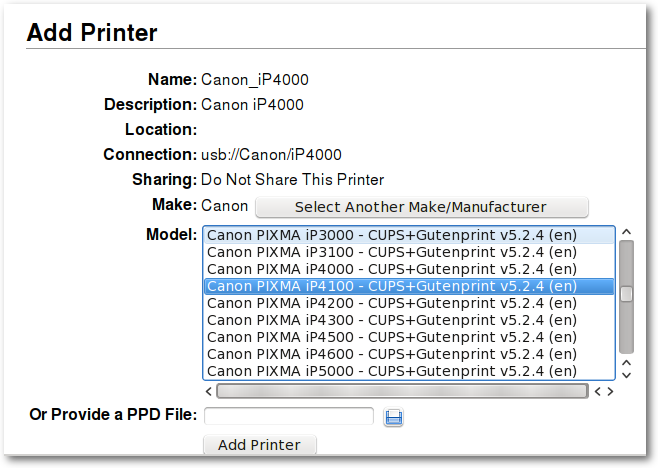
- Select the correct driver from the list (Model) - see an example below. This is the important part. Or if you have a PPD file instead, you can load it here.
- Select Add Printer, and finish the process by configuring details of the printer.
- Now the printer should be usable on your computer.
Salix Codecs Installer
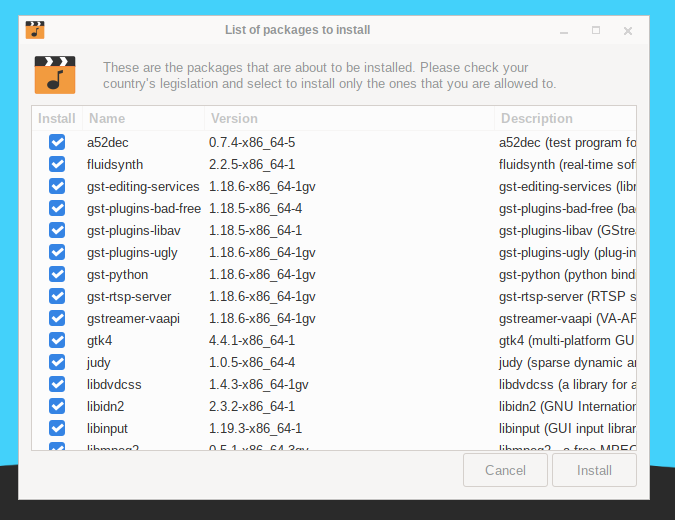
Salix only includes, by default, software that is legally free to use in any country, and that means that proprietary media formats are not configured “out of the box”. Most commercial DVDs are encrypted, and that means that you need to install certain codecs to view them. This is legally permitted in most countries but not all. Please check and obtain legal advice if you are unsure whether a particular legal restriction applies to a media format or packages you wish to use in your country.
Salix codecs installer can be found under “Multimedia” in the main application menu, and will conveniently install those codecs which enable the viewing of the vast majority of commercial media formats. You can also run it from a terminal:
sudo salix-codecs-installer
Salix Tools
What are the Salix Tools?
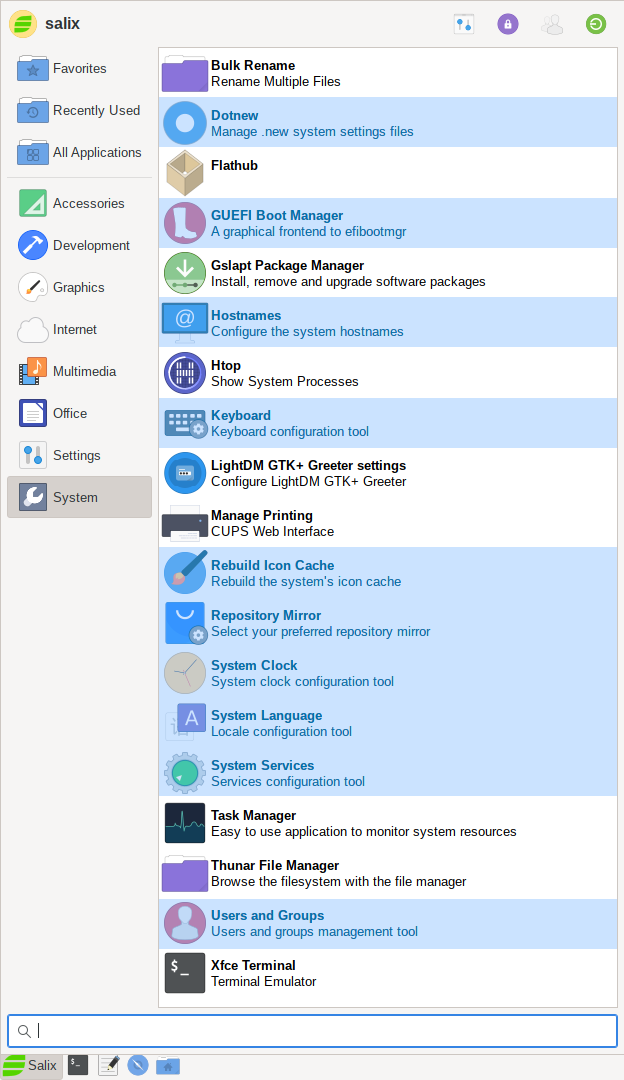
Salix tools are a collection of utilities that are designed to manage every aspect of Salix configuration easily. You can find these tools under the System section of the application menu. Of course, system management in Salix can also be done the usual (manual) Slackware way.
Please note that most Salix tools have an ncurses counterpart which can be used in a Linux terminal or console.
Dotnew
Dotnew manages the system configuration upgrades used by Slackware. It will display a possible course of action for each new configuration file found in the system.
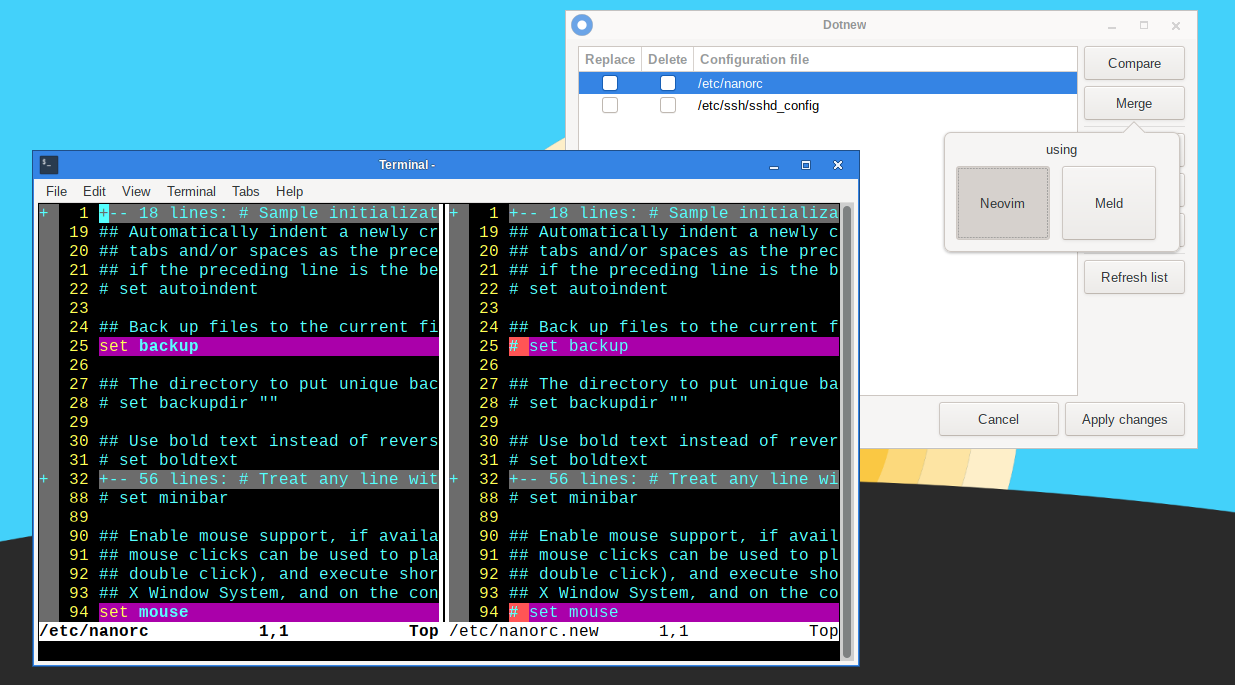
To execute this utility in a terminal, simply type
sudo dotnew
GUEFI
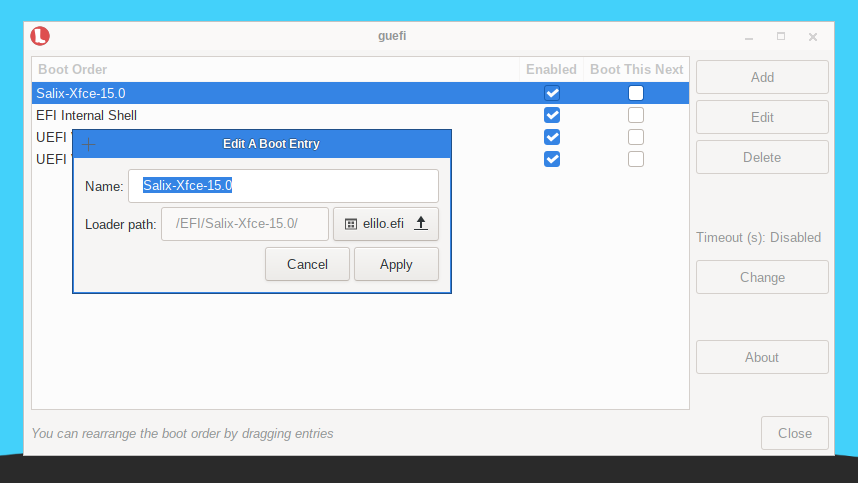
GUEFI is a Python/GTK+3 application that acts as a frontend for efibootmgr. It provides an easy to use interface for managing UEFI boot options.
Using GUEFI you can:
- Create a new UEFI boot entry
- Edit a UEFI boot entry
- Delete a UEFI boot entry
- Change the UEFI boot order
- Enable/disable a UEFI boot entry
- Configure a UEFI boot entry to be the default during the next boot only
Hostnames
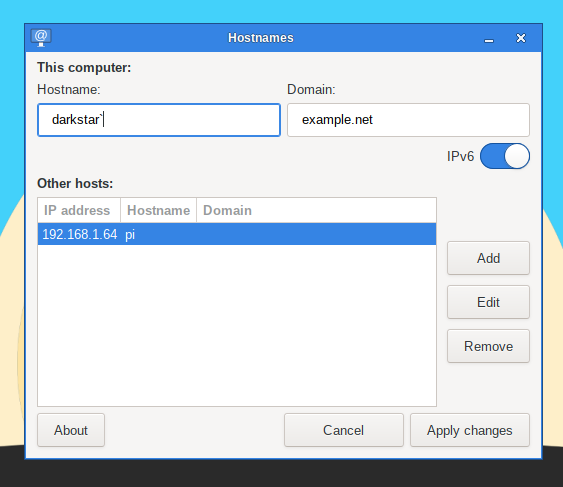
Hostnames manages the host names used by your computer. This tool facilitates defining/overviewing host names used while setting up your machine as a server.
Keyboard Layout
This utility will configure the keyboard layout being used both in the graphical and non-graphical environments. Modifications are applied instantly.
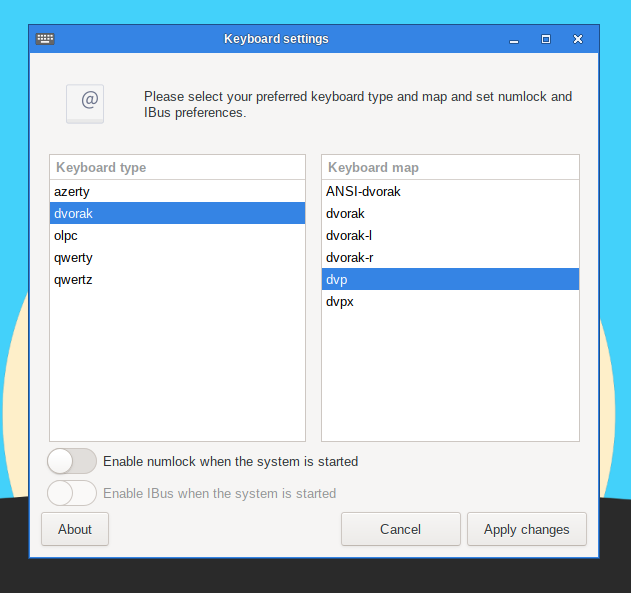
Note that if you would like to activate Ibus during the start up, you can do so by ticking the optional box.
To execute this utility in a terminal, simply type
sudo keyboardsetup
Rebuild Icon Cache
As the name indicates, Rebuild Icon Cache reconnects some icons that may have become lost after updating your system/installing some new program and makes them appear again in the application menu.
Repository Mirror
This tool can be used to to select your preferred repository mirror. The country code where each mirror is located is shown next to each entry. You should usually choose a mirror that is closer to you geographically, as they will be usually faster. Of course you can also use this tool when your preferred mirror goes temporarily offline to switch to another.
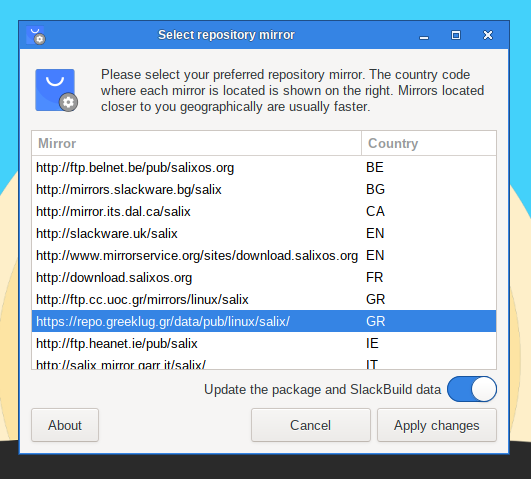
To execute this utility in a terminal, simply type
sudo reposetup
If you prefer to edit the mirror settings by hand, the full list of mirrors is available in Repository Mirrors.
System Clock
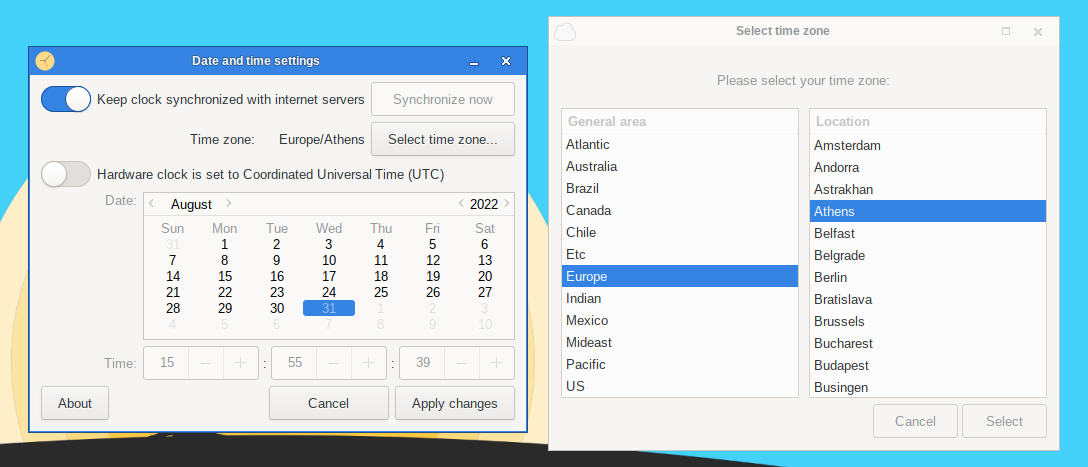
This utility will configure your computer clock. To execute it in a terminal, simply type
sudo clocksetup
System Language
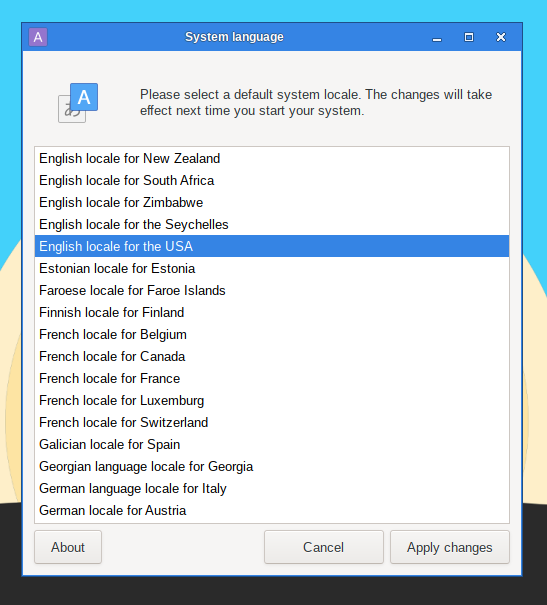
This utility will configure the language of your system. To execute it in a terminal, simply type
sudo localesetup
System Services
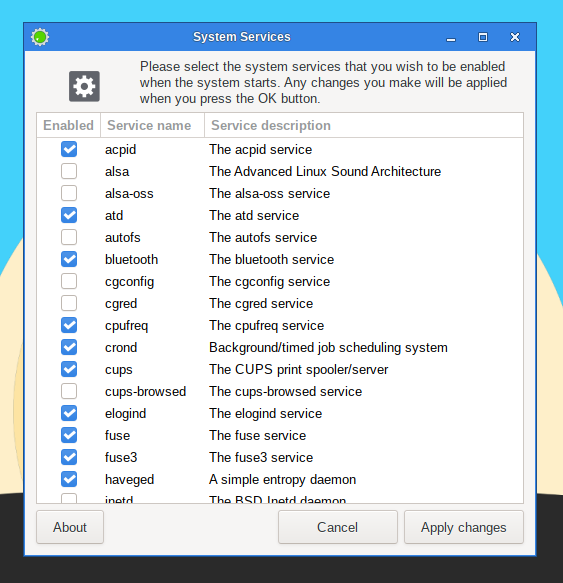
Here you will be able to select the services that should or shouldn’t be activated in the background when your system starts.
All your modifications will be applied instantly if you press the OK button and will not necessitate a reboot.
To execute this utility in a terminal, simply type
sudo servicesetup
User Profiles
In Unix/Linux, all users and groups of users are given certain permissions and access rights to some part of the system in order to control their ability to access and change it.
This utility manages the creation, deletion and properties of all the system users and groups of users.
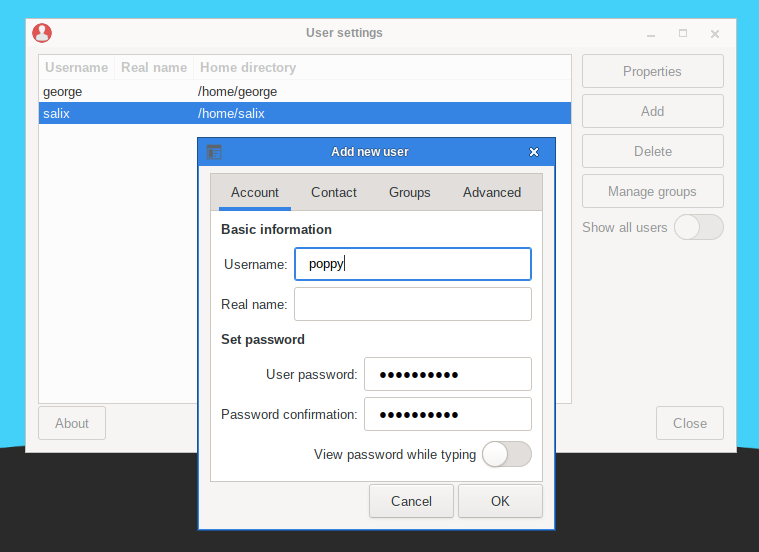
To execute it in a terminal, simply type
sudo usersetup
Salix-Update-Notifier
Salix update notifier is a tool that periodically checks for available package updates and informs the user about them with the display of a non-intrusive tray icon, which can be used to launch the upgrade process with Gslapt.
