Salix Startup Guide · Chapter 3 of 6
Starting up Salix
Introduction
Downloading Salix
The latest Salix releases are freely and easily available as ISO image files from the Salix download page, via direct download link or torrent file.
if it is convenient for you to do so and please seed if you can. These torrents are hosted by Salix’s torrent server, made possible by generous donations from users.
An ISO image is an archive file of an optical disc. It can be easily burned to an optical disc by using media authoring or disc burning software. The resulting disc should contain the contents of the .iso file, but not the .iso file itself; if it does, you have made a mistake in the process. These days, it might be more usual to write the .iso file to a USB stick, using a tool like dd, or any image writing software.
It is recommended if possible, to verify the integrity of your downloaded file by comparing its md5sum file with the original one uploaded besides the corresponding ISO image file by Salix. This ensures that your downloaded image file matches exactly with the one provided on the Salix website and minimises the possibility of installation errors later on.
Booting from a Salix Installation medium
Your computer must be set to boot on the optical drive/USB port first before defaulting to the internal hard disk drive. If that is not the case, you need to first modify the respective BIOS or UEFI setting, usually by pressing the Del key or the F2 key (or some other key combinations depending on your machine). Once in the BIOS/UEFI screen, find the boot menu or similar and set the order of the boot devices properly, with your optical drive/USB port in the first position. Save your changes and reboot your computer. Insert the Salix CD/DVD or USB key, and start up your computer.
Installing Salix
Before starting
Installing Salix on your computer is simple. But before starting, it is wise to check the following points:
- Have you backed up all the important files you have?
- Check if your computer comes with Linux-friendly/supported hardware.
- Minimum recommended specification (1 GB RAM, 12 GB HD space. Any 64-bit capable CPU for a 64-bit installation. An Intel PIII 1 GHz CPU or equivalent CPU for a 32-bit installation, though a lower spec machine may run without a problem).
- At least one separate partition dedicated for Salix on your computer.
For the disk space each installation mode needs, see How Much Disk Space Does Salix Need.
Partition Management
Before installing Salix, you need to have the necessary partition space available on your system, and if the computer does not have a separate partition for Linux, you must create one before installing Salix.
If you have an unformatted partition, unallocated disk space, an existing partition you do not use, or you are happy to completely erase and reformat your hard drive, you can create or rewrite a new partition table using cfdisk (or cgdisk for EFI systems), which is available through the Salix installer. A short tutorial on using cfdisk is available in a later section in this guide. cfdisk and cgdisk are capable of removing and creating partitions, but they lack the functionality to resize partitions. While using cfdisk or cgdisk is easy, less experienced users may prefer the safeguards and graphical interface of Gparted, which can also resize and move partitions.
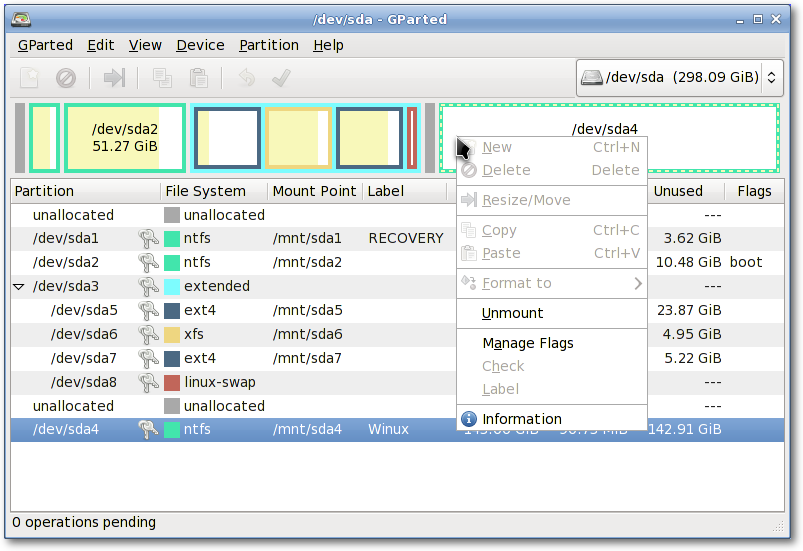
Live CDs from pretty much any Linux distribution come with Gparted, which will enable you to change the partition organisation on a disk device while preserving the contents of the partitions. You may wish to use this application to create/re-organise your partition table.
A hard drive space can be divided into no more than four “primary” partitions, which can be problematic if you are hosting more than one operating system on the same hard drive. A hard drive can, however, be divided into three “primary” partitions and one “extended” partition. The extended partition can then be subdivided into “logical” partitions and hence overcome the limitation set by the “primary partition” (i.e. no more than four partitions). In practice, there is no difference between a logical and a primary partition except that “Windows” OS cannot be installed on a logical partition.
It is advisable to back up any important files before modifying the partition table.
So what kind of partitions do you need?
- Salix needs, at the very minimum, one partition which holds the root
directory and must be assigned as
/. - It is often recommended to have one swap partition though modern RAM sizes now often mean it isn’t needed. If you already have another Linux OS running on your machine, its swap partition can be shared, and you do not need to create another. A swap partition is in essence used as extra RAM to improve the performance of your machine when, for example, your machine doesn’t have a lot of physical RAM or you’re performing memory-intensive operations (such as video editing) that use up most or all of the physical RAM. It is normally recommended to have 1.5-2 times the size of your RAM as swap space, but for a modern desktop computer with several GB of RAM, a swap partition may not be strictly necessary.
- Many users like to have a separate partition to hold the /home directory, where you can store all your personal data such as documents, photos, customised settings for the desktop environment etc; but this is by no means necessary.
- Optionally you can create separate partitions to hold different directories such as the /var directory, where system log files are stored. But unless you are running a server machine, this is probably unnecessary. An advantage of having more than one partition to hold separate directories is that you can reformat one partition without affecting others. For example, you can re-install Salix on your machine (this goes to the partition holding the “/” directory) while leaving the partition holding the /home directory intact; however, be aware that /home can contain configuration specific to each distribution and release, so sharing it between distros or reusing it when installing a new version of Salix is liable to lead to problems.
Each partition can be formatted into one of several file systems, including xfs, ext4, ext3, ext2, btrfs, jfs and reiserfs. The default is xfs.
On (U)EFI systems, it is mandatory to have a separate partition allocated for /boot/efi. This partition should have a type of ef00, when created in cgdisk. This partition should be formatted using the FAT32 filesystem. A size of 200 MB should be more than enough.
Installing from a Salix Installation Disc
Installing Salix from a Salix Installation optical disc is somewhat similar to installing Slackware, but the entire process is considerably shorter and less complicated. Everything is done efficiently in a semi-graphical command line interface.
To start the installation process, you may type setup (or press the up
arrow on your keyboard to revoke the same command - useful if your actual
keymap doesn’t match the one that is used by default in the installer). Once
the installer starts, you will be presented with several dialogs to customize
the installation process. Here is what you will have to do:
- Select your keymap.
- The installer will run cfdisk (or cgdisk) to allow you to set up your desired partitions. If they are already as you wish, type ‘Q’ to quit. See below for a detailed guide to using cfdisk.
- Your swap partition, if any, will be automatically detected. Say
yesif the detected partition corresponds to that. - You will then be asked to specify the partition for the root
/directory. Select the partition you have created for the/, and continue to format the partition. Unless you prefer otherwise, the xfs file system is recommended here. - If you have other partitions to mount, you can do so. If you have a
partition for a
/homedirectory, select the partition and continue. Unless the partition is new or you would like to erase the content of this partition, select not to format. - Other partitions such as Windows partitions will be detected automatically. If you would like to make those partitions automatically usable during your Salix session, include them all to mount.
- The installer will start installing Salix. You will be asked first where the source files are. If you are installing from the CD, select “from the CD”. Everything should be detected automatically.
- You will be asked to choose an installation mode (Full, Basic or Core).
- Installation of packages will start.
- After the installation, LILO (or eLILO for EUFI systems) setup will start up. Unless you are not using LILO/eLILO, choose the default options. You can refine the bootloader configuration (for example, in a multi-boot scenario) after booting into your new Salix installation.
- You will be asked some other questions regarding time-zone, username and password. Make sure you add at least one user to your system, otherwise you will not be able to log in!
- When all the basic questions are answered, you will be presented the option to reboot the system.
- That’s all. The computer is good to go! Enjoy Salix!
By default, the first user created has access to sudo, any others do not; to allow them access as well, they need to be added to the wheel group. The root user is disabled by default in Salix. If you need it, see How to Enable the root User.
Installing from a Salix Installation USB
Installing Salix from a USB key is also possible. You can use dd to transfer the contents of the Salix iso image to your USB stick, using a command line like this:
dd if=salix_image_file.iso of=/dev/sdb
Of course, you’ll have to replace salix_image_file.iso with the exact path and name to the iso file you would like to use.
The dd command wipes all the data from the specified target device. In
the example given above that device is /dev/sdb, but it could very well
be a different one in your case. Always double check which partition and
device you are reading from and writing to, e.g. using
sudo fdisk -l. If you are not 100% certain, then do not proceed as
this could permanently destroy the contents of an entire hard drive.
After writing the iso image to your USB stick and setting your BIOS to boot from it, the installer works exactly as described above when booting from an optical disc. The only difference is that when you are asked for the medium to use as a source for the packages installation, you should select the “Install from a Salix USB” option.
Partition management with cfdisk
These instructions assume that you will create a single partition to hold Salix, plus a swap partition, as an illustration; however, cfdisk can create any partitioning scheme required. Note that you can also delete partitions (which will irrevocably destroy their contents). New partitions can be created in free space. For the purposes of this example, it is assumed the entire disk is free. Swap, if you need it, should normally be twice your RAM, so if that is 250 MB, swap should be 500 MB. If you have more than 2 GB of RAM, you needn’t take this rule too strictly and you can have smaller sized swap partitions.
You can move between the commands listed at the bottom of the screen with the arrow keys, or select the command by typing the first letter, such as ‘Q’ to Quit.
- Make a New partition, taking up all but 1 GB of the disk (this will be used for swap space). Note that you can choose whether to create a Primary or Extended partition; the former is what is needed in this example, but an extended partition will allow for the creation of logical partitions within it, when a more complex setup is needed.
- Make this partition Bootable (with ‘B’). Use the up and down arrow keys to select a particular partition, if there is more than one. The default partition type is ‘Linux’ so that partition is done.
- Next, make another new partition, taking up the rest of the drive.
- Change its Type to 82, Linux Swap.
- When you are happy with it, Write the partition table to disk.
- Quit to continue with Salix installation.
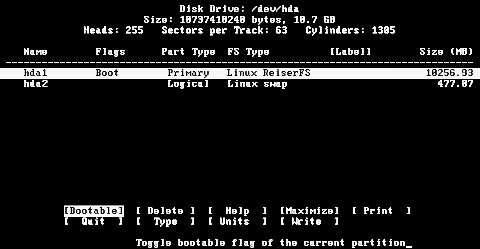
If your hard drive is partitioned using the GPT scheme, instead of the older MBR scheme, instead of cfdisk, you get cgdisk. While there are some differences between them, you’ll find out that they are mostly the same, so the instructions provided for cfdisk apply to cgdisk, for the most part.
For more details on how disks and partitions are named and on each of the cfdisk commands, see Partitioning with cfdisk.