Salix Startup Guide · Chapter 5 of 6
Salix Mini Walkthroughs
Working with the Command Line Interface
This section deals with working in a console mode or with a terminal (such as Xfce terminal, xterm, konsole and so forth), and serves merely as a light introduction to the command line interface (CLI). The intended audience here is not seasoned travelers but new journeymen in the land of Linux, who are willing to discover more about what one can do with it. We will go through some examples in this section for you to follow, and hopefully by the end of this walkthrough, you will have no problem working with the “black screen”. For those who would like to know more about CLI, there are a couple of useful resources available on the net, and some are listed in the Salix Forum.
So why learn CLI commands at all? Graphical user interfaces for applications have been steadily improving in Linux and are probably now comparable to any OS in their ease of use. On the other hand, where Linux excels, in particular, is in the area of command line applications, its traditional strength. Without the CLI, you would be effectively missing out on half of what Linux can offer.
There is another reason. From time to time, you might have to work in the console. For instance, if the machine fails to start up a graphical desktop environment during booting, then you are more or less forced to fix the problem without the graphical user interface (GUI).
Of course, there are many other reasons to learn CLI commands, but for now we will start by learning how to move around directories.
First, open up a terminal or move to a console: you can do the latter by pressing Ctrl+Alt+F2, for example. To get back to the graphical desktop, press Alt+F4, for example. F number keys are used to switch between consoles; if F4 or F7 doesn’t do the trick, try others.
However, the simplest option is to open a terminal within the GUI: there is probably an option to do so in the panel, or if not, in the menu.
Moving Around - cd
You should be in your user directory (denoted as ~), which is
normally the same as /home/your_user_name (replace
your_user_name with your own). In Salix, this directory contains
Desktop, Music, Documents and so on. To see its
contents, type ls and press enter. You will see something like
this:
george[~]$ ls
Desktop      Download    Pictures    Templates    salix
Documents    Music       Music       Videos
Now to move around directories, we use the command cd. If you just type in
cd and enter, it will take you to your home directory, but as we are already there, in
this case, nothing will happen. cd must otherwise be followed
either by a name of a directory which is within the directory you are in
or by a full path to the directory you wish to move into. You can also
go one directory up by typing
cd ..
(be careful, there is a space between cd and ..).
Remember in Linux,
arguments are separated by spaces. So for now, let’s move to the root directory.
The root directory is, as the name suggests, the core of your
directories - every directory stems from here.
To move to the root /, type in
cd /
Type in ls to see the list of files and directories in the
directory. You should see something like tmp/, usr/,
home and so on. OK, not so interesting here. Let us move back to
your home directory with
cd /home/your_user_name
or just
cd
Now move into the Music directory by issuing
cd Music
In fact, you do not have to type to the end. By pressing Tab after the first letter or two, you may complete the rest of the directory name automatically.
The important thing to notice here is this is a relative path: unlike
where the whole path was specified above, starting from the root of the
filesystem /, if the path doesn’t begin with / it is understood
as starting from whatever the current directory is, in this case, your
user’s home. So Music, in this case, means the same as /home/your_user_name/Music.
Creating a Folder - mkdir
You can create a folder by issuing
mkdir name_of_a_new_folder
For example, let’s say we are going to create a photo folder.
mkdir photo
will place the new folder in the current directory. You can check this by typing
ls
Next, let’s create a log file for the photo folder. nano is a
command-line application for reading and writing texts. To bring up the
program, type in
nano
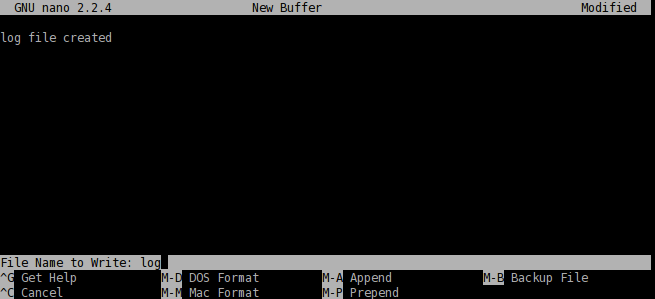
The application is simple to use, and you can see command options shown at the bottom. Type
log file created
and with Ctrl+x, save
the document as log and quit the application.
Copying & Moving & Removing a File - cp & mv & rm
cp is perhaps one of the most used commands in a console mode.
cp copies a file or files from one location to another. Since we
created the file called log and it is currently in the wrong
directory, let us move it inside the photo directory. You can do
so by issuing cp log photo/ but perhaps it is better to call the
log file not just log but log.txt, so that it would be
obvious to a Windows user that it is a text file. Type in
cp log photo/log.txt
and enter to execute the command.
You can go inside the photo directory and check if the copying has
been done properly. cd photo and then ls. The file should be
there. Let’s add to the log file by saying that it has been moved from
Music to photo. Issuing
nano log.txt
will bring up the
text. Add a line to say it has been moved, and then save and quit the
application by Ctrl+x.
Oh, but we forgot to delete the original log file in the
Music folder. Let’s just get back to the Music directory
using cd .. and remove the log file by issuing rm log.
The rm command removes a file or files. For example, if you would
like to remove all photos with .jpg extension but not with .png, you can
issue a command something like:
rm *.jpg
This will remove all
the files with .jpg extension within the directory you are in. Note that
the rm command will not ask you to confirm your order. It will
just carry out your instructions without further ado and once a file is
removed, it is deleted forever. You cannot recover it from the recycle
bin.
In this example, we used cp to copy the log file and then later on
deleted it. Normally, this would be done by issuing a mv command;
mv log photo/
You can also use the mv command to rename a
file. Let’s say that you did not like the earlier decision to call the
log file log.txt and you now want to rename it as log again.
Type in
mv photo/log.txt photo/log
and execute the command. Now
the file name has been changed back to log.
Copying & Moving & Removing a Folder - cp & mv & rm
So now you have the folder called photo and a log file in the
Music directory. This is a little strange as we should normally
have the folder not in Music but in Pictures. But now you
know how to move a file, perhaps the same command will work for moving a
folder?
But…
cp photo ../Pictures
remember that .. refers to the
folder one level up) will give an error like this.
george[Music]$ cp photo ../Pictures
cp: omitting directory 'photo/'
george[Music]$
Let’s see what we can do here. The first thing when encountering such a
problem is to check the corresponding help file. This can normally be
done by issuing a command with an option like cp --help. It is
possible that --help will just be -h, and there may be no help
at all. man is another command if this is the case.
man cp
will give a more in-depth explanation of this command. (To get out of the
manual, press q).
If you read the help carefully, you will see that you need to give an
extra option -r if you wish to copy a folder to another location.
So now
cp -r photo ../Pictures
should copy the photo folder
inside the correct Pictures directory. After checking that the
folder has been safely copied, you can remove the photo folder
from the Music directory:
rm -r photo/
Installing a Program - slapt-get
Maybe a little bird has told you that there is a wonderful application called cowsay in Linux, and now you would like to see what this program can do.
If this is the first time you are installing an application on Salix, the first thing you should do is to update the package database on your computer by executing
sudo slapt-get -u
Then to search for an application (in this case, “cowsay”), type in
slapt-get --search cowsay
Notice that you don’t need to type sudo just for searching for a
package. The output you will get should be similar to this:
george[~]$ slapt-get --search cowsay
cowsay-3.03-noarch-1salix15.0 [inst=no]: cowsay (A Configurable Speaking/Thinking Cow)
xcowsay-1.5.1-x86_64-2salix15.0 [inst=no]: xcowsay (display a cute cow and speech bubble)
To install it, you simply must run:
sudo slapt-get -i cowsay
If you are not sure what this
-i is in the above command, you can check it with slapt-get --help.
You will see a
lot of lines running up the terminal quickly until the application is
installed.
Once it is installed, you might want to test it. First get out of the
superuser mode by typing exit. Then type in cowsay. Nothing
happens, and, in fact, you will see that you are now in a strange mode
that you cannot execute any commands. This is because the application is
still running, but as you don’t see anything, perhaps it is not running
properly. To terminate the process, press Ctrl+c. You will get
back the normal input line back on your terminal.
george[Desktop]$ cowsay
^C
george[Desktop]$
So what was going wrong? Check
cowsay -h
You will see
that you need to type in a [message]. Try again with
cowsay Hello Salix!
We have merely scratched the surface of the power of the command line here. The best way to learn more is by using it, but remember to use the help tools, and consult online documentation such as that listed in the Salix forum. Linuxcommand.org can be particularly recommended if you wish to gain a comprehensive grounding. Proceed cautiously, but don’t be afraid to experiment.
A final tip - it can be difficult to copy longer commands accurately. If you select the text with the mouse, clicking the middle button or wheel will paste it accurately into the command line or wherever you wish. This only works in a terminal running within a GUI.