Subsections of Salix Startup Guide
Salix Startup Guide · Chapter 1 of 6
About this Manual
The purpose of this manual is to enable you to take full advantage of
the many features of Salix. The latest version of this document
is available from our website.
The Salix start up guide is released under the CC-BY-SA 3.0 license.
Your contribution is important!
We would like to improve the quality of the manual and to provide more
documents translated in your mother tongue. Your help is always
welcome.
For any comments and submission of articles to be included in the start-up
guide, please contact us through the
Salix mailing list.
Acknowledgement
My sincere thanks to all the people who have contributed to and worked
on this start-up guide, especially mimosa, who did a lot of work
rewriting big parts of this guide and helped cleaning it up.
Many thanks also to tsuren, jrd, akuna, and
maximus for all their hard work in the previous versions of this
guide.
The section on partitioning with cfdisk is adapted from the guide for
Absolute Linux, with thanks to Paul Sherman.
~gapan
Salix Startup Guide · Chapter 2 of 6
Salix at a Glance
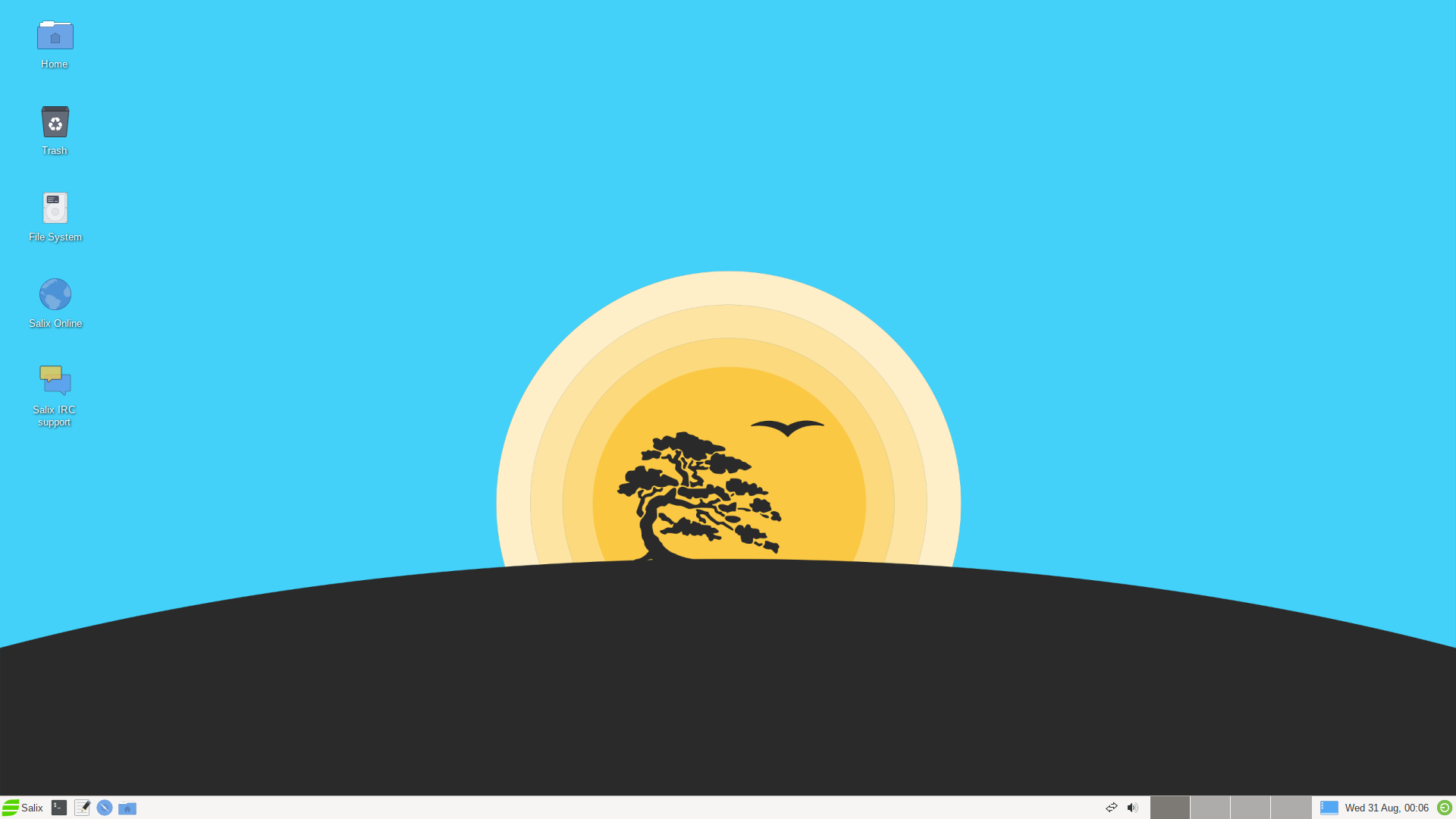
Salix is a Linux Distribution based on
Slackware that retains full backwards
compatibility with its illustrious parent. However, while the
KISS principle that
Slackware adheres to refers to the viewpoint of system design, Salix
also applies it to the viewpoint of the end user.
Salix Features
- One application per task rationale.
- Fully backwards compatible with Slackware.
- Optimised for desktop usage.
- With Salix Tools to assist system management.
- High-quality package repositories with dependency support.
- Simple & fully localized system administration tools.
- Salix artwork.
- Supports 32-bit and 64-bit architectures.
- Comes with a complete development environment.
Installation Modes
Salix offers three software installation options: Full, Basic
and Core, to meet your demands!
Performing a Full mode installation is the recommended way of
installing Salix for most users. It includes a fully configured desktop
environment with a complete selection of applications to fit the needs
of most people, including office related software, multimedia
applications, internet applications, all the Salix system configuration
tools and more. Don’t let the word “Full” fool you, this is in no way a
bloated installation since it adheres to the “one application per
task” rationale. We feel that the collection of software that accompanies
each respective desktop environment will cover
most user’s needs but, of course, any user
can tailor the software selection through the Salix package management tools
as required.
A Basic mode installation is mostly targeted at advanced users. It
includes only the desktop environment accompanied by a
very minimal selection of software on top, namely the Salix system
configuration tools and a web browser. Wi-fi connection tools or drivers are not present and
only wired network connections are supported out of the box. The user is
expected to know how to install extra software and tailor the
installation to their needs.
A Core mode installation does not provide any graphical environment.
It only installs a command line system, including the Salix command line
system and package management tools. It is
intended for expert users who know how to use the command line tools to
administer their systems. It is most commonly used to set up
types of server such as web-servers and e-mail servers. The servers that host
the Salix websites are hosted on, run Salix installed using the Core
mode method. Expert users can of course use this
mode to install the X window system and any graphical environment on top of it if desired
(see How to Install Xorg on Salix Core).
Salix Repositories & Package Management
Here are the key points you need to be aware of with respect to installing software on
your Salix system:
- slapt-get and its graphical interface Gslapt are the primary tools used for
package management.
- It is also possible to install software using Flatpaks. flatpak is available
for installing software from the huge
collection that is available in Flathub. Finally, slapt-src
is included to allow building software from source using SBo
as the primary source.
- A wide range of packages from Slackware, Slackbuild and Salix repositories.
- The Salix repositories offer dependency resolution support and are
the largest third party software package repositories for Slackware
offered to date.
- The Salix repositories are offered for both the 32-bit and 64-bit architectures.
In Short, Salix is…
“Like a bonsai, Salix is small, light & the product of infinite care.”
Salix Startup Guide · Chapter 3 of 6
Starting up Salix
Introduction
Downloading Salix
The latest Salix releases are freely and easily available
as ISO image files from the Salix
download page, via direct download link
or torrent file.
Please use the torrents…
if it is convenient for you to do so and please seed if you can.
These torrents are hosted by Salix’s torrent server,
made possible by generous donations from users.
An ISO image is an archive file of an optical disc. It can be easily burned to
an optical disc by using media authoring or disc burning software. The
resulting disc should contain the contents of the .iso file, but not the .iso
file itself; if it does, you have made a mistake in the process. These days, it
might be more usual to write the .iso file to a USB stick, using a tool like
dd, or any image writing software.
Checking download integrity
It is recommended if possible, to verify the integrity of your downloaded
file by comparing its md5sum file
with the original one uploaded besides the corresponding ISO image file
by Salix. This ensures that your downloaded image file matches exactly
with the one provided on the Salix website and minimises the possibility
of installation errors later on.
Booting from a Salix Installation medium
Your computer must be set to boot on the optical drive/USB port first
before defaulting to the internal hard disk drive.
If that is not the case, you need to first modify the respective
BIOS or
UEFI setting, usually by pressing the Del
key or the F2 key (or some other key combinations depending on your
machine). Once in the BIOS/UEFI screen, find the boot menu or similar and
set the order of the boot devices properly, with your optical drive/USB
port in the first position. Save your changes and reboot your computer.
Insert the Salix CD/DVD or USB key, and start up your computer.
Installing Salix
Before starting
Installing Salix on your computer is simple. But before starting, it is
wise to check the following points:
- Have you backed up all the important files you have?
- Check if your computer comes with Linux-friendly/supported
hardware.
- Minimum recommended specification (1 GB RAM, 12 GB HD space.
Any 64-bit capable CPU for a 64-bit
installation. An Intel PIII 1 GHz CPU or equivalent CPU for
a 32-bit installation, though a lower spec machine may run
without a problem).
- At least one separate
partition
dedicated for Salix on your computer.
For the disk space each installation mode needs, see
How Much Disk Space Does Salix Need.
Partition Management
Before installing Salix, you need to have the
necessary partition space available on your system, and if the computer
does not have a separate partition for Linux, you must create one before
installing Salix.
If you have an unformatted partition, unallocated disk
space, an existing partition you do not use, or you are happy to
completely erase and reformat your hard drive, you can create or
rewrite a new partition table using cfdisk (or cgdisk for EFI
systems), which is available through the Salix installer. A short
tutorial on using cfdisk is available in a later section
in this guide. cfdisk and cgdisk are capable of removing and
creating partitions, but they lack the functionality to resize
partitions. While using cfdisk or cgdisk is easy, less experienced
users may prefer the safeguards and graphical interface of Gparted,
which can also resize and move partitions.
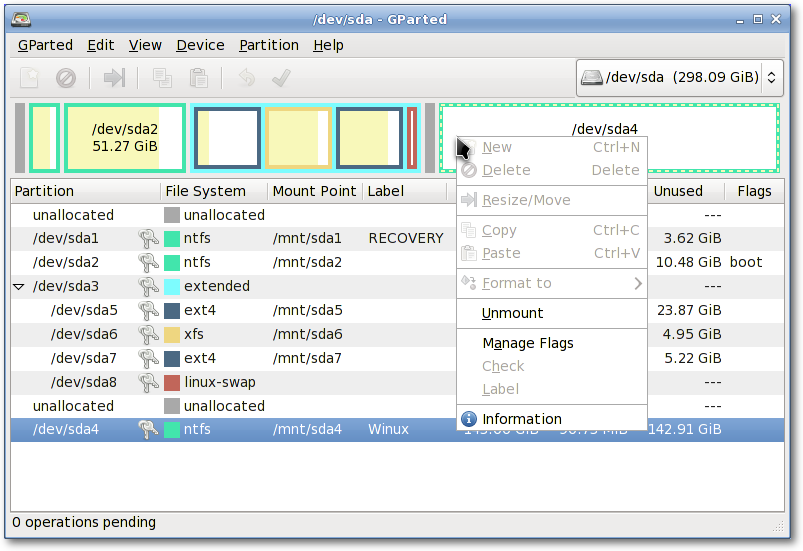
Live CDs from pretty much any Linux distribution come with
Gparted,
which will enable you to change the partition organisation on a disk
device while preserving the contents of the partitions. You may wish to
use this application to create/re-organise your partition table.
A hard drive space can be divided into no more than four “primary”
partitions, which can be problematic if you are hosting more than one
operating system on the same hard drive. A hard drive can, however, be
divided into three “primary” partitions and one “extended” partition.
The extended partition can then be subdivided into “logical” partitions
and hence overcome the limitation set by the “primary partition” (i.e.
no more than four partitions). In practice, there is no
difference between a logical and a primary partition except that
“Windows” OS cannot be installed on a logical partition.
Backup your files!
It is advisable to back up any important files before modifying the partition
table.
So what kind of partitions do you need?
- Salix needs, at the very minimum, one partition which holds the root
directory and must be assigned as
/.
- It is often recommended to have one swap partition though modern RAM
sizes now often mean it isn’t needed. If you already
have another Linux OS running on your machine, its swap partition can be
shared, and you do not need to create another. A swap partition is
in essence used as extra RAM to improve the performance of your
machine when, for example, your machine doesn’t have a lot of physical
RAM or you’re performing memory-intensive operations (such as video
editing) that use up most or all of the physical RAM. It is
normally recommended to have 1.5-2 times the size of your RAM as swap
space, but for a modern desktop computer with several GB of RAM, a swap
partition may not be strictly necessary.
- Many users like to have a separate partition to hold the /home
directory, where you can store all your personal data such as documents,
photos, customised settings for the desktop environment etc; but this is
by no means necessary.
- Optionally you can create separate partitions to hold different directories
such as the /var directory, where system log files are stored. But unless
you are running a server machine, this is probably unnecessary.
An advantage of having more than one partition to hold separate
directories is that you can reformat one partition without affecting
others. For example, you can re-install Salix on your machine (this
goes to the partition holding the “/” directory) while leaving
the partition holding the /home directory intact; however, be aware that /home
can contain configuration specific to each distribution and release, so sharing it
between distros or reusing it when installing a new version of Salix is
liable to lead to problems.
Each partition can be formatted into one of several file systems,
including xfs, ext4, ext3, ext2, btrfs, jfs and reiserfs. The default
is xfs.
EFI
On (U)EFI systems, it is mandatory to have a separate partition allocated for
/boot/efi. This partition should have a type of ef00, when created in
cgdisk. This partition should be formatted using the FAT32
filesystem. A size of 200 MB should be more than enough.
Installing from a Salix Installation Disc
Installing Salix from a Salix Installation optical disc is somewhat similar to
installing Slackware, but the entire process is considerably shorter and
less complicated. Everything is done efficiently in a
semi-graphical command line interface.
To start the installation process, you may type setup (or press the up
arrow on your keyboard to revoke the same command - useful if your actual
keymap doesn’t match the one that is used by default in the installer). Once
the installer starts, you will be presented with several dialogs to customize
the installation process. Here is what you will have to do:
- Select your keymap.
- The installer will run cfdisk (or cgdisk) to allow you to set up your desired
partitions. If they are already as you wish, type ‘Q’ to quit. See below for
a detailed guide to using cfdisk.
- Your swap partition, if any, will be automatically detected. Say
yes if the
detected partition corresponds to that.
- You will then be asked to specify the partition for the root
/
directory. Select the partition you have created for the /, and
continue to format the partition. Unless you prefer otherwise, the xfs file
system is recommended here.
- If you have other partitions to mount, you can do so. If you have a
partition for a
/home directory, select the partition and continue.
Unless the partition is new or you would like to erase the content of
this partition, select not to format.
- Other partitions such as Windows partitions will be detected
automatically. If you would like to make those partitions automatically
usable during your Salix session, include them all to mount.
- The installer will start installing Salix. You will be asked first
where the source files are. If you are installing from the CD, select
“from the CD”. Everything should be detected automatically.
- You will be asked to choose an installation mode (Full, Basic or
Core).
- Installation of packages will start.
- After the installation, LILO (or eLILO for EUFI systems) setup will start
up. Unless you are not
using LILO/eLILO, choose the default options. You can refine the bootloader
configuration (for example, in a multi-boot scenario) after booting into
your new Salix installation.
- You will be asked some other questions regarding time-zone, username and
password. Make sure you add at least one user to your system, otherwise you
will not be able to log in!
- When all the basic questions are answered, you will be presented the option
to reboot the system.
- That’s all. The computer is good to go! Enjoy Salix!
Salix now uses sudo!
By default, the first user created has access to sudo, any others do not; to
allow them access as well, they need to be added to the wheel group. The root
user is disabled by default in Salix. If you need it, see
How to Enable the root User.
Installing from a Salix Installation USB
Installing Salix from a USB key is also possible. You can use dd to
transfer the contents of the Salix iso image to your USB stick, using
a command line like this:
dd if=salix_image_file.iso of=/dev/sdb
Of course, you’ll have to replace salix_image_file.iso with the exact
path and name to the iso file you would like to use.
dd is very dangerous!
The dd command wipes all the data from the specified target device. In
the example given above that device is /dev/sdb, but it could very well
be a different one in your case. Always double check which partition and
device you are reading from and writing to, e.g. using
sudo fdisk -l. If you are not 100% certain, then do not proceed as
this could permanently destroy the contents of an entire hard drive.
After writing the iso image to your USB stick and setting your BIOS to
boot from it, the installer works exactly as described above when
booting from an optical disc. The only difference is that when you are asked for
the medium to use as a source for the packages installation, you should
select the “Install from a Salix USB” option.
Partition management with cfdisk
These instructions assume that you will create a single partition to hold Salix,
plus a swap partition, as an illustration; however, cfdisk can create any
partitioning scheme required. Note that you can also delete partitions
(which will irrevocably destroy their contents). New partitions can be created in free
space. For the purposes of this example, it is assumed the entire disk is free. Swap, if
you need it, should normally be twice your RAM, so if that is 250 MB,
swap should be 500 MB. If you have more than 2 GB of RAM, you needn’t
take this rule too strictly and you can have smaller sized swap
partitions.
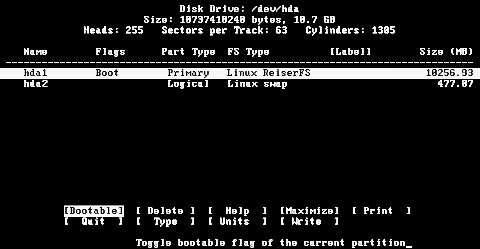
You can move between the commands listed at the bottom of the screen with the arrow keys, or
select the command by typing the first letter, such as ‘Q’ to Quit.
- Make a New partition, taking up all but 1 GB of the disk (this will be used for
swap space). Note that you can choose whether to create a Primary or Extended partition; the
former is what is needed in this example, but an extended partition will allow for
the creation of logical partitions within it, when a more complex setup is needed.
- Make this partition Bootable (with ‘B’). Use the up and down arrow keys to select a
particular partition, if there is more than one. The default partition type is ‘Linux’ so
that partition is done.
- Next, make another new partition, taking up the rest of the drive.
- Change its Type to 82, Linux Swap.
- When you are happy with it, Write the partition table to disk.
- Quit to continue with Salix installation.
GPT
If your hard drive is partitioned using the GPT scheme, instead of the
older MBR scheme, instead of cfdisk, you get cgdisk. While there
are some differences between them, you’ll find out that they are mostly
the same, so the instructions provided for cfdisk apply to
cgdisk, for the most part.
For more details on how disks and partitions are named and on each of the
cfdisk commands, see
Partitioning with cfdisk.
Salix Startup Guide · Chapter 4 of 6
Your Salix
Package Management
Installing applications (which roughly equates to “installing packages”) is a
fundamental part of the Linux experience. A Linux distribution, such as Salix
(or Slackware, on which it is based) could be said to consist of its repositories, where the software
available for that distribution is kept. These packages have been
compiled with the kernel and build tools provided by the distribution
and tested to ensure they work together. Salix, like most distros (but
not Slackware) provides full dependency management, which means that any
items the package needs to run are installed too – and also that
they are guaranteed to be available.
Installing extra software is also possible through flatpaks and
Flathub. Just navigate to the software you wish to
install and press the “Install” button on the webpage. If your browser
defaults to downloading the .flatpakref file instead of opening it, just
open the Downloads folder and double-click it inside your file manager.
You can also create and install your own packages, for which Salix
provides a suite of console scripts, especially slkbuild; for
further information, see the wiki pages on packaging. When installing
packages from any other source, proceed with caution.
slackbuilds.org (SBo) provides build scripts for further
software not present in the repositories. This means the package will be
built on your system before being installed. Salix provides a command-lie tool,
slapt-src, for this purpose. But it has limited dependency management, as
not dependencies are listed at SBo. Therefore the build
is not guaranteed to be successful and some manual tinkering may be needed.
Unlike the software provided in the repositories, these scripts are not
maintained by either Salix or Slackware but by individual users, and as
such are not the responsibility of either distribution, although help may
be found on the forum. If the build fails, the last ten lines or so of the
output usually provide an indication of the reason. Most commonly, this is
a missing dependency, which may be a build dependency (needed to compile
the package, but not to run it). Common packages that are required by
several SlackBuilds, but not included as part of a standard Salix
installation are cmake and linuxdoc-tools, so first make sure
you have these installed if you encounter any problems.
If you don’t mind using a bit of extra space on your hard drive, then
most of these problems could disappear by installing the slackware/d
and slackware/l package sets:
sudo slapt-get --install-set slackware/d --install-set slackware/l
However, you shouldn’t really need to revert to SBo often, if at all.
The Salix repositories offer thousands of packages and even more are
available through Flathub.
Reminder!
You need to have superuser privileges in order to install or upgrade
packages.
Gslapt
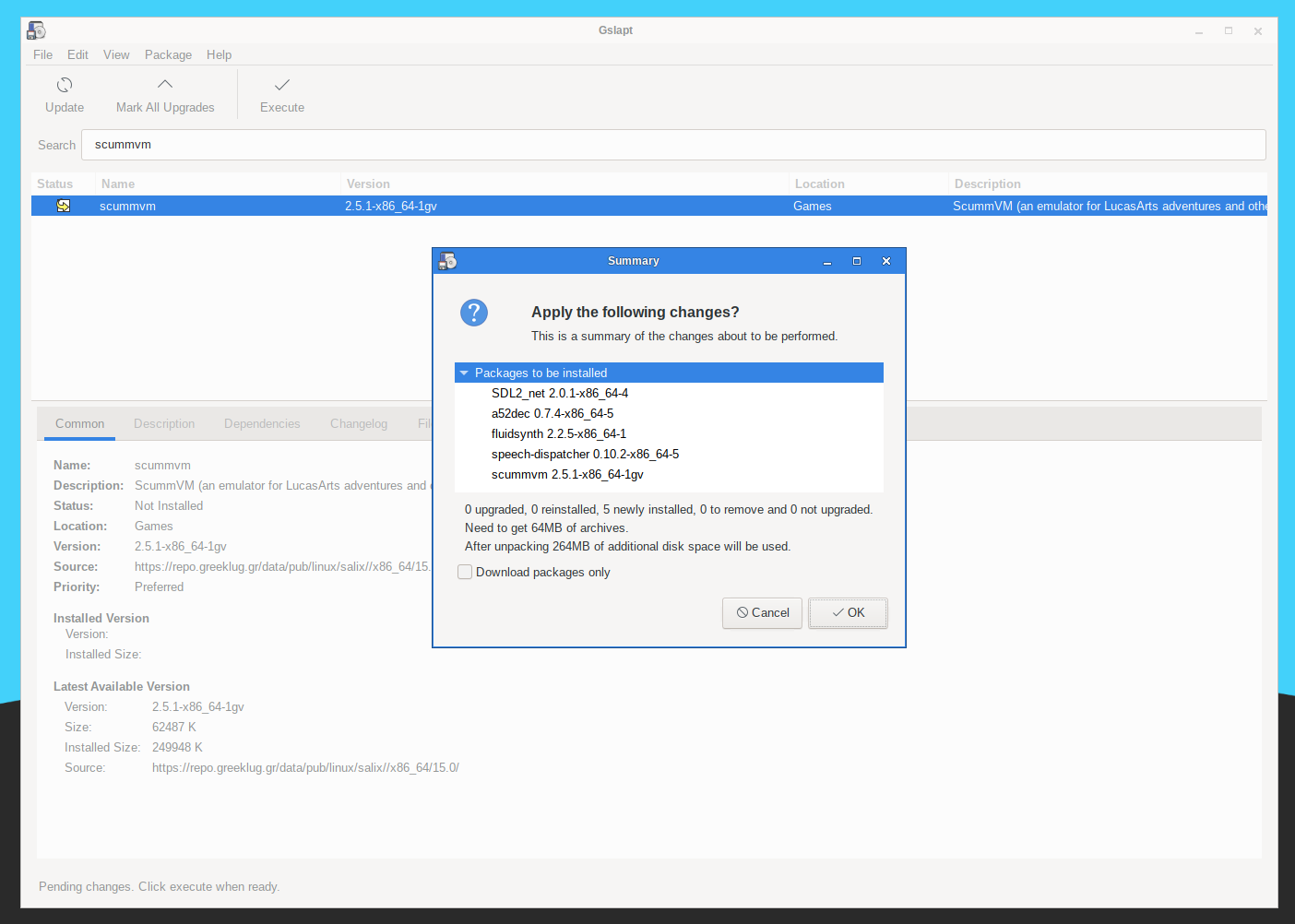
Gslapt is the GUI version of slapt-get. It allows one to
search Slackware/Salix mirrors for packages.
Before use you should first click on the Update button to ensure that
the latest updates from the software repositories are known to Gslapt.
The search field is there for you to search for a particular package.
You can highlight with your left click and choose to
install/uninstall/reinstall packages with a right click. Gslapt detects
dependencies and will install all the dependency files for a package
automatically. Installation, uninstallation or reinstallation of
packages (whichever applies) will take
place once you click on the Execute button. You can blacklist
packages by adding their names to the blacklist found in “Preferences”
under “Edit”.
On first installing Salix, you should also do a general package upgrade
to ensure your installed system is up to date with the repositories – click on
“Mark all upgrades”, then “Execute”.
Package management from the command line
slapt-get and slapt-src are the basic command-line tools used for installing
packages. Gslapt provides a GUI for slapt-get. This section describes their use
from the command line, along with the flatpak command line tool which is used to
install software that comes in flatpaks.
slapt-get
slapt-get is a
command line tool for Slackware package management. It allows one to
search Slackware/Salix mirrors for packages,
compare them with installed packages, install new packages, or
upgrade all installed packages.
To use the application, open a Terminal window and first issue the
command
sudo slapt-get -u
in order to update the package database on your
computer. Then
slapt-get -l
to list all the available packages,
slapt-get --search [package name]
to search for a package, and
sudo slapt-get -i [package name]
to install a package. For more
command line instructions, please refer to
slapt-get --help
Here is a little exercise for you. Try installing w3m which is a
terminal based web browser, by using slapt-get.
slapt-src
slapt-src is a command line tool that makes the process of downloading
and building software packages from SBo simple and easy.
SBo keeps a large collection of build scripts for extra
packages that are still not available from the official Salix /
Slackware repositories. Thousands of extra packages are now available to
users through this tool.
To use the application, type in
sudo slapt-src -u
first to update on
your computer the list of build scripts available from Slackbuild.org.
slapt-src -l
shows you a list of available packages, and as in
slapt-get,
sudo slapt-src -i [package name]
will build and install a package. For
more command line instructions, please refer to
slapt-src --help
When a package is available both in the Salix repositories and from SBo, the
Salix package is preferred. See
Slackbuilds in Salix Repositories for
why, and for how to build the SBo version instead.
spkg
If you would like to install or upgrade a package that you have manually
downloaded or have built yourself, you can use spkg. Salix packages
(just as Slackware packages) have filenames that end with the .tgz,
or .txz extensions (there are also .tlz and .tbz but they
are very rarely used). To either install a new package or upgrade a
package you can use the following command:
sudo spkg [exact path to package]
Note that the name of the package must be exact to the last character in
the extension, e.g. mozilla-firefox-24.3.0esr-x86_64-2gv.txz
(command line auto-complete using the TAB key helps in this respect).
Removing a package is somewhat similar. You can remove a package by
issuing
sudo spkg -d [software name]
e.g. sudo spkg -d mozilla-firefox
Be careful with package files you find online: not every .txz or .tgz
file is a package, and packages built for other systems can break yours. See
How Do I Install a txz/tgz File I Found Online?
for how to check.
Blacklisting packages
If you are replacing a package that is available in the repositories,
you will need to blacklist this package
in /etc/slapt-get/slapt-getrc to prevent it from being “downgraded” when
you next carry out a general package upgrade. (See above for how to do
this in Gslapt).
flatpak
Software that is installed using flatpaks is managed separately from the main
package management tools described earlier.
A popular source for flatpaks is Flathub. Salix comes
with a GUI helper tool, flatpakref-installer to install software that way.
You may use the flatpak command like tool to manage your flatpak software.
To install a flatpak you can run a command like the following:
flatpak install flathub org.kde.krita
You will find this command in the respective webpage of the software you’d like
to install in Flathub.
To run software that is installed through flatpaks your run something like this:
flatpak run org.kde.krita
This command is also available in the software’s page in Flathub. But a menu entry
is usually added, so you don’t have to remember that.
To get a list of installed flatpaks, you may run:
flatpak list
To update all of your flatpaks to their latest version, you can run:
flatpak update
Uninstalling a flatpak is possible by:
flatpak uninstall org.kde.krita
You may find more information about the flatpak command by running:
man flatpak
or
flatpak --help
Making a Package from a Source File with SLKBUILD
Installing software from a source file is in most cases not difficult.
You can compile a lot of software generally with the following
commands.
- unpack a source file, move inside the folder.
- type in
./configure on the terminal.
- type in
make.
- type in
sudo make install.
- type your password.
Make sure to read accompanying files such as “README”, “INSTALL” and so
on for installation instructions before compiling. These files may list
dependency packages which you need to install prior to the
configuration.
./configure --help
or
./configure --help=short output
should also help you with some configuration options.
Although you should manage to install the software after the final
command, it is essentially untracked, and neither Gslapt nor slapt-get
can see that the software is installed. A better way is to create a
Salix package using SLKBUILD, which is a build script you can prepare
before issuing
fakeroot slkbuild -X
to create a Salix compatible package which can then be installed with spkg
(the fakeroot package should also be installed).
For more on SLKBUILD, please consult
SLKBUILD
and New to Packaging.
Upgrading Salix to a Newer Version
When a new Salix release comes out, you can upgrade your existing installation
by following the instructions in
Upgrading Between Releases.
Configuring Your Salix
Setting up an internet connection
Network connections are managed by NetworkManager in Salix. It is an open source
wired and wireless network manager for Linux which aims to provide a
simple interface to connect to networks with a wide variety of
settings. You will find NetworkManager in your system tray.

It will connect to wired (Ethernet only, no PPPoE/DSL support yet) and
wireless networks.
Note that networkmanager must be activated in the
system services in order to use it..
Setting up a Printer
After writing a document, transferring photos from your camera, or
creating your own images with GIMP, you would probably like to print
them out with your printer. To do this, you need to have a printer
already installed on your system. “Manage Printing”, which is found
under “System” in the main application menu, handles the installation
and general management of your printers. (Ensure that “CUPS” is enabled
in the system services, or Manage Printing
will not start properly).
If you are buying a new printer, it is recommended to check the
availability of Linux drivers beforehand from the
Open Printing database
(or search on the Internet). Some companies offer printer drivers for Linux,
but this is less common than desired and could involve a
lengthy installation process. For most Linux friendly printers,
you have to install drivers such as gutenprint or HPIJS, both of
which are available from the repositories.
- Select “Add Printers and Classes”.
- Under “Printers”, select “Add Printer”.
- Enter “root” as a username and your superuser password.
- Select your printer description and choose if you would like to share the printer.
- Select the correct driver from the list (Model) - see an example
below. This is the important part. Or if you have a
PPD file
instead, you can load it here.
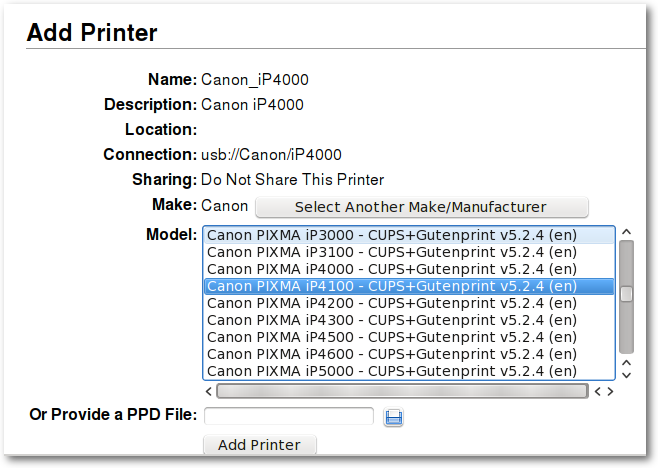
- Select Add Printer, and finish the process by configuring details of the printer.
- Now the printer should be usable on your computer.
Salix Codecs Installer
Salix only includes, by default, software that is legally free to use
in any country, and that means that proprietary media formats are not
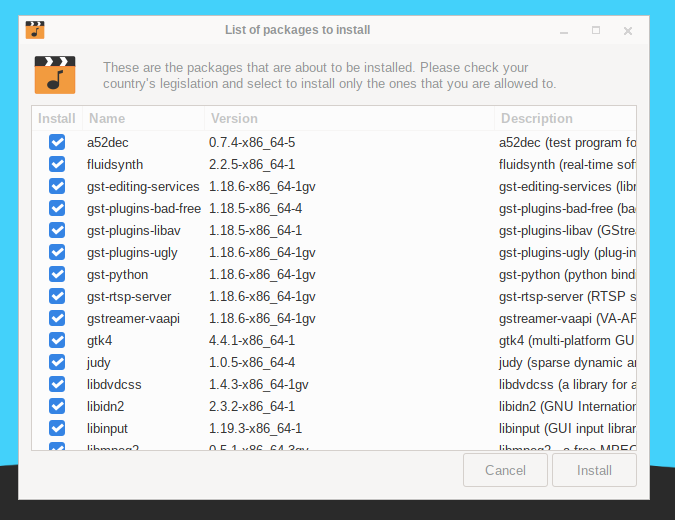
configured “out of the box”. Most commercial DVDs are encrypted, and
that means that you need to install certain codecs to view them. This is
legally permitted in most countries but not all. Please check and obtain
legal advice if you are unsure whether a particular legal restriction
applies to a media format or packages you wish to use in your
country.
Salix codecs installer can be found under “Multimedia” in the main
application menu, and will conveniently install those codecs which
enable the viewing of the vast majority of commercial media formats.
You can also run it from a terminal:
sudo salix-codecs-installer
Salix tools are a collection of utilities that are designed to manage
every aspect of Salix configuration easily. You can find these tools
under the System section of the application menu. Of course, system
management in Salix can also be done the usual
(manual)
Slackware way.
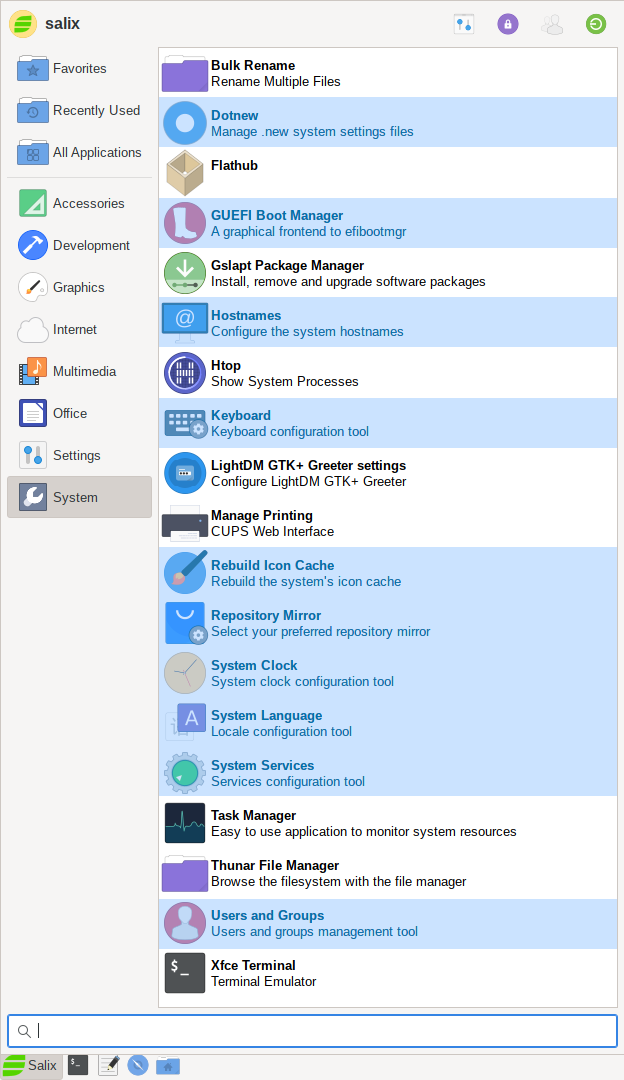
Please note that most Salix tools have an ncurses
counterpart which can be used in a Linux terminal or console.
Dotnew
Dotnew manages the system configuration upgrades used by Slackware. It
will display a possible course of action for each new configuration file
found in the system.
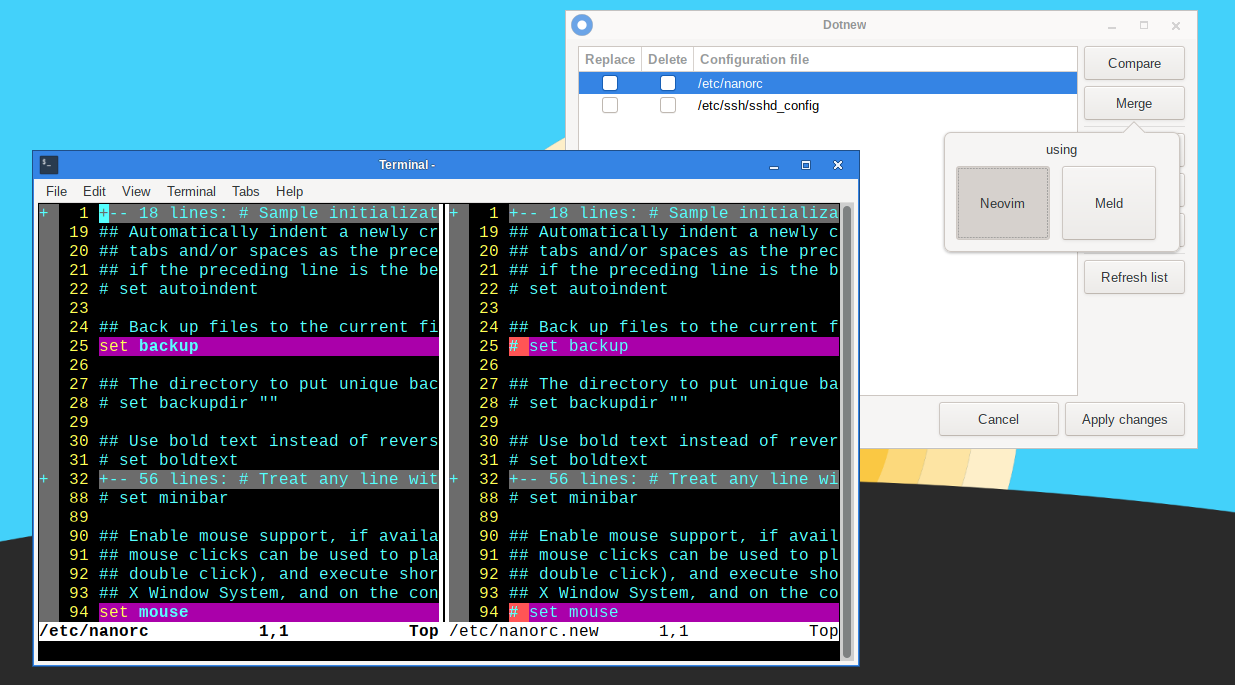
To execute this utility in a terminal, simply type
sudo dotnew
GUEFI
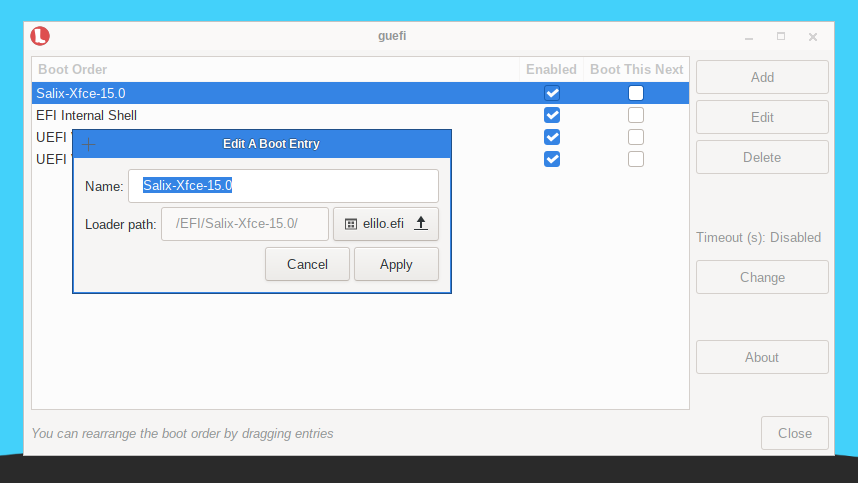
GUEFI is a Python/GTK+3 application that acts as a frontend for efibootmgr.
It provides an easy to use interface for managing UEFI boot options.
Using GUEFI you can:
- Create a new UEFI boot entry
- Edit a UEFI boot entry
- Delete a UEFI boot entry
- Change the UEFI boot order
- Enable/disable a UEFI boot entry
- Configure a UEFI boot entry to be the default during the next boot only
Hostnames
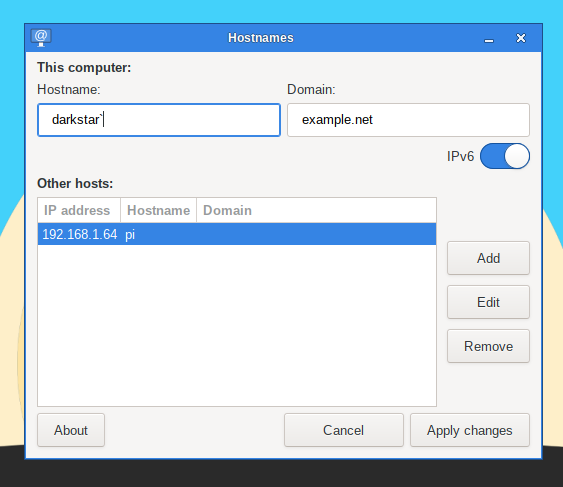
Hostnames manages the host names used by your computer. This tool
facilitates defining/overviewing host names used while setting up your
machine as a server.
Keyboard Layout
This utility will configure the keyboard layout being used both in
the graphical and non-graphical environments. Modifications are applied
instantly.
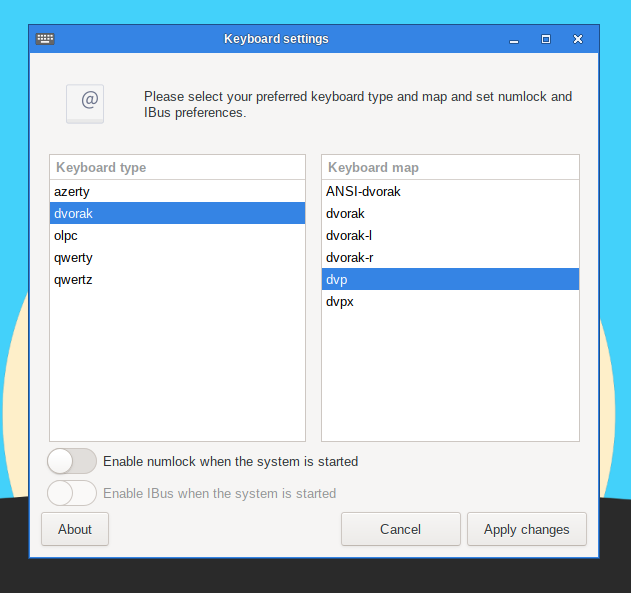
Note that if you would like to activate Ibus during the start
up, you can do so by ticking the optional box.
To execute this utility in a terminal, simply type
sudo keyboardsetup
Rebuild Icon Cache
As the name indicates, Rebuild Icon Cache reconnects some icons that may
have become lost after updating your system/installing some new
program and makes them appear again in the application menu.
Repository Mirror
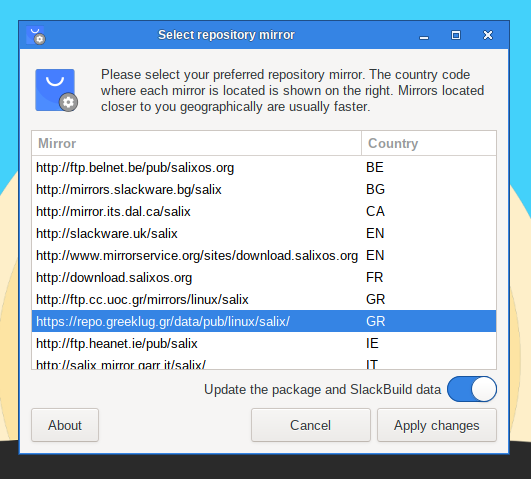
This tool can be used to to select your preferred repository mirror. The
country code where each mirror is located is shown next to each entry. You
should usually choose a mirror that is closer to you geographically, as they
will be usually faster. Of course you can also use this tool when your
preferred mirror goes temporarily offline to switch to another.
To execute this utility in a terminal, simply type
sudo reposetup
If you prefer to edit the mirror settings by hand, the full list of mirrors is
available in Repository Mirrors.
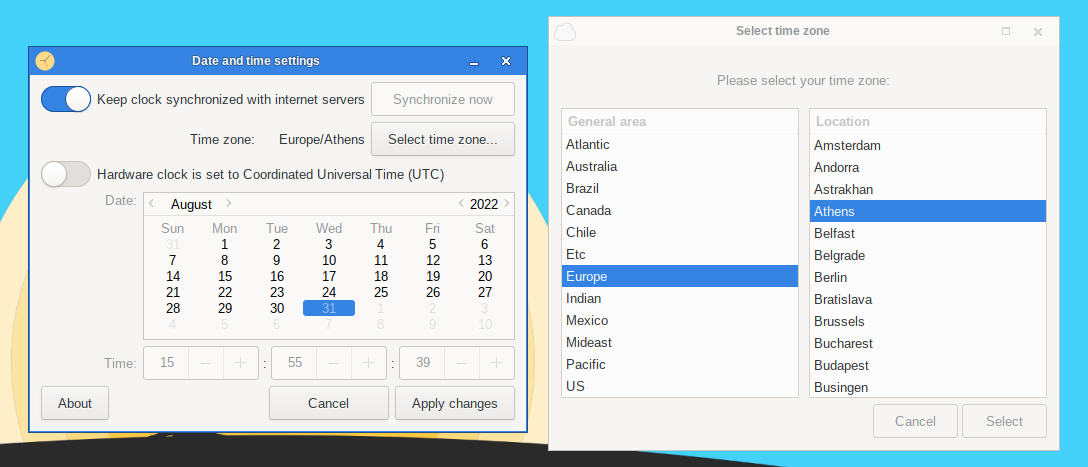
System Clock
This utility will configure your computer clock.
To execute it in a terminal, simply type
sudo clocksetup
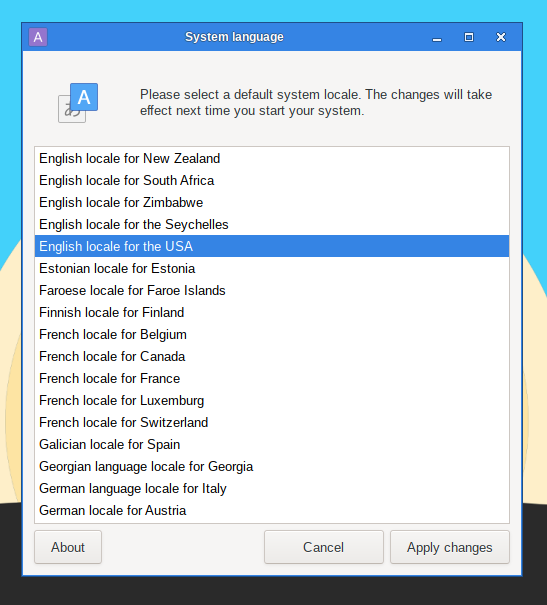
System Language
This utility will configure the language of your system.
To execute it in a terminal, simply type
sudo localesetup
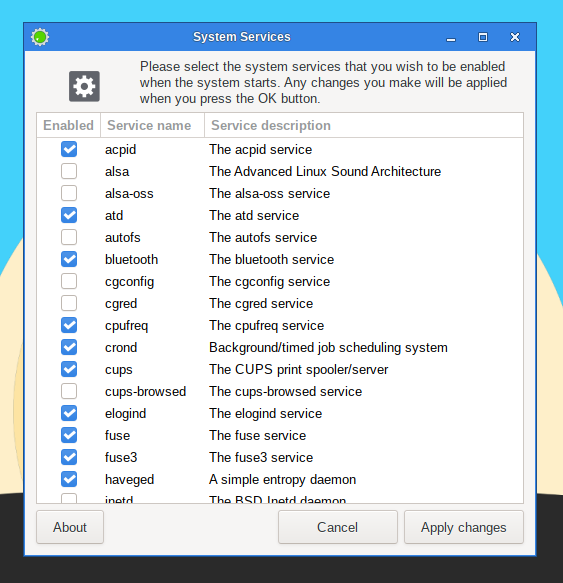
System Services
Here you will be able to select the services that should or shouldn’t be
activated in the background when your system starts.
All your modifications will be applied instantly if you press the OK
button and will not necessitate a reboot.
To execute this utility in a terminal, simply type
sudo servicesetup
User Profiles
In Unix/Linux, all users and groups of users are given certain
permissions and access rights
to some part of the system in order to control their ability to access
and change it.
This utility manages the creation, deletion and properties of all the
system users and groups of users.
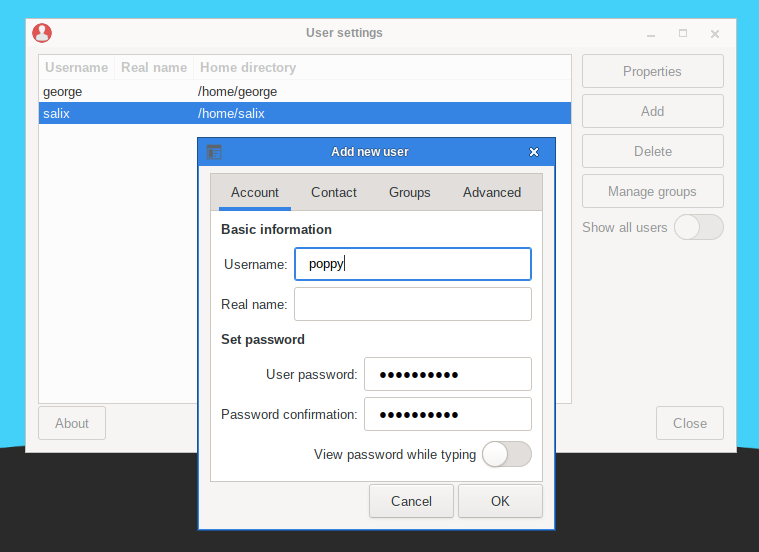
To execute it in a terminal, simply type
sudo usersetup
Salix-Update-Notifier
Salix update notifier is a tool that periodically checks for available
package updates and informs the user about them with the display of a
non-intrusive tray icon, which can be used to launch the upgrade process
with Gslapt.

Salix Startup Guide · Chapter 5 of 6
Salix Mini Walkthroughs
Working with the Command Line Interface
This section deals with working in a console mode or with a terminal
(such as Xfce terminal, xterm, konsole and so forth), and serves merely
as a light introduction to the command line interface (CLI).
The intended audience here is not seasoned travelers but new journeymen
in the land of Linux, who are willing to discover more about what one
can do with it. We will go through some examples in this section for you
to follow, and hopefully by the end of this walkthrough, you will have
no problem working with the “black screen”. For those who would like to
know more about CLI, there are a couple of useful resources available on
the net, and some are listed in the
Salix Forum.
So why learn CLI commands at all? Graphical user interfaces for
applications have been steadily improving in Linux and are probably now
comparable to any OS in their ease of use. On the other hand, where
Linux excels, in particular, is in the area of command line applications,
its traditional strength. Without the CLI, you would be
effectively missing out on half of what Linux can offer.
There is another reason. From time to time, you might have to work in
the console. For instance, if the machine fails to start up a graphical
desktop environment during booting, then you are more or less forced to
fix the problem without the graphical user interface (GUI).
Of course, there are many other reasons to learn CLI commands, but for
now we will start by learning how to move around directories.
First, open up a terminal or move to a console: you can do the latter by
pressing Ctrl+Alt+F2, for example. To get back to the
graphical desktop, press Alt+F4, for example. F number
keys are used to switch between consoles; if F4 or F7 doesn’t do the trick, try
others.
However, the simplest option is to open a terminal within the GUI: there is probably
an option to do so in the panel, or if not, in the menu.
Moving Around - cd
You should be in your user directory (denoted as ~), which is
normally the same as /home/your_user_name (replace
your_user_name with your own). In Salix, this directory contains
Desktop, Music, Documents and so on. To see its
contents, type ls and press enter. You will see something like
this:
george[~]$ ls
Desktop      Download    Pictures    Templates    salix
Documents    Music       Music       Videos
Now to move around directories, we use the command cd. If you just type in
cd and enter, it will take you to your home directory, but as we are already there, in
this case, nothing will happen. cd must otherwise be followed
either by a name of a directory which is within the directory you are in
or by a full path to the directory you wish to move into. You can also
go one directory up by typing
cd ..
(be careful, there is a space between cd and ..).
Remember in Linux,
arguments are separated by spaces. So for now, let’s move to the root directory.
The root directory is, as the name suggests, the core of your
directories - every directory stems from here.
To move to the root /, type in
cd /
Type in ls to see the list of files and directories in the
directory. You should see something like tmp/, usr/,
home and so on. OK, not so interesting here. Let us move back to
your home directory with
cd /home/your_user_name
or just
cd
Now move into the Music directory by issuing
cd Music
In fact, you do not have to type to the end. By pressing Tab after the
first letter or two, you may complete the rest of the directory name
automatically.
The important thing to notice here is this is a relative path: unlike
where the whole path was specified above, starting from the root of the
filesystem /, if the path doesn’t begin with / it is understood
as starting from whatever the current directory is, in this case, your
user’s home. So Music, in this case, means the same as /home/your_user_name/Music.
Creating a Folder - mkdir
You can create a folder by issuing
mkdir name_of_a_new_folder
For example, let’s say we are going to create a photo folder.
mkdir photo
will place the new folder in the
current directory. You can check this by typing
ls
Next, let’s create a log file for the photo folder. nano is a
command-line application for reading and writing texts. To bring up the
program, type in
nano
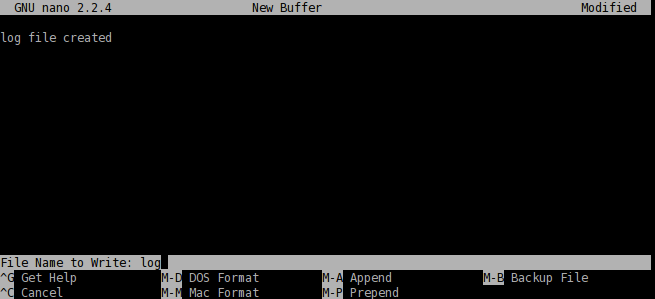
The application is simple to use, and you can see command options shown
at the bottom. Type
log file created
and with Ctrl+x, save
the document as log and quit the application.
Copying & Moving & Removing a File - cp & mv & rm
cp is perhaps one of the most used commands in a console mode.
cp copies a file or files from one location to another. Since we
created the file called log and it is currently in the wrong
directory, let us move it inside the photo directory. You can do
so by issuing cp log photo/ but perhaps it is better to call the
log file not just log but log.txt, so that it would be
obvious to a Windows user that it is a text file. Type in
cp log photo/log.txt
and enter to execute the command.
You can go inside the photo directory and check if the copying has
been done properly. cd photo and then ls. The file should be
there. Let’s add to the log file by saying that it has been moved from
Music to photo. Issuing
nano log.txt
will bring up the
text. Add a line to say it has been moved, and then save and quit the
application by Ctrl+x.
Oh, but we forgot to delete the original log file in the
Music folder. Let’s just get back to the Music directory
using cd .. and remove the log file by issuing rm log.
The rm command removes a file or files. For example, if you would
like to remove all photos with .jpg extension but not with .png, you can
issue a command something like:
rm *.jpg
This will remove all
the files with .jpg extension within the directory you are in. Note that
the rm command will not ask you to confirm your order. It will
just carry out your instructions without further ado and once a file is
removed, it is deleted forever. You cannot recover it from the recycle
bin.
In this example, we used cp to copy the log file and then later on
deleted it. Normally, this would be done by issuing a mv command;
mv log photo/
You can also use the mv command to rename a
file. Let’s say that you did not like the earlier decision to call the
log file log.txt and you now want to rename it as log again.
Type in
mv photo/log.txt photo/log
and execute the command. Now
the file name has been changed back to log.
Copying & Moving & Removing a Folder - cp & mv & rm
So now you have the folder called photo and a log file in the
Music directory. This is a little strange as we should normally
have the folder not in Music but in Pictures. But now you
know how to move a file, perhaps the same command will work for moving a
folder?
But…
cp photo ../Pictures
remember that .. refers to the
folder one level up) will give an error like this.
george[Music]$ cp photo ../Pictures
cp: omitting directory 'photo/'
george[Music]$
Let’s see what we can do here. The first thing when encountering such a
problem is to check the corresponding help file. This can normally be
done by issuing a command with an option like cp --help. It is
possible that --help will just be -h, and there may be no help
at all. man is another command if this is the case.
man cp
will give a more in-depth explanation of this command. (To get out of the
manual, press q).
If you read the help carefully, you will see that you need to give an
extra option -r if you wish to copy a folder to another location.
So now
cp -r photo ../Pictures
should copy the photo folder
inside the correct Pictures directory. After checking that the
folder has been safely copied, you can remove the photo folder
from the Music directory:
rm -r photo/
Installing a Program - slapt-get
Maybe a little bird has told you that there is a wonderful application
called cowsay in Linux, and now you would like to see what this
program can do.
If this is the first time you are installing an application
on Salix, the first thing you should do is to update the package
database on your computer by executing
sudo slapt-get -u
Then to
search for an application (in this case, “cowsay”), type in
slapt-get --search cowsay
Notice that you don’t need to type sudo just for searching for a
package. The output you will get should be similar to this:
george[~]$ slapt-get --search cowsay
cowsay-3.03-noarch-1salix15.0 [inst=no]: cowsay (A Configurable Speaking/Thinking Cow)
xcowsay-1.5.1-x86_64-2salix15.0 [inst=no]: xcowsay (display a cute cow and speech bubble)
To install it, you simply must run:
sudo slapt-get -i cowsay
If you are not sure what this
-i is in the above command, you can check it with slapt-get --help.
You will see a
lot of lines running up the terminal quickly until the application is
installed.
Once it is installed, you might want to test it. First get out of the
superuser mode by typing exit. Then type in cowsay. Nothing
happens, and, in fact, you will see that you are now in a strange mode
that you cannot execute any commands. This is because the application is
still running, but as you don’t see anything, perhaps it is not running
properly. To terminate the process, press Ctrl+c. You will get
back the normal input line back on your terminal.
george[Desktop]$ cowsay
^C
george[Desktop]$
So what was going wrong? Check
cowsay -h
You will see
that you need to type in a [message]. Try again with
cowsay Hello Salix!
We have merely scratched the surface of the power of the
command line here. The best way to learn more is by using it, but remember to
use the help tools, and consult online documentation such as that listed
in the Salix forum. Linuxcommand.org
can be particularly recommended if you wish to gain a comprehensive
grounding. Proceed cautiously, but don’t be afraid to experiment.
A final tip - it can be difficult to copy longer commands accurately. If
you select the text with the mouse, clicking the middle button
or wheel will paste it accurately into the command line or wherever you
wish. This only works in a terminal running within a GUI.
Salix Startup Guide · Chapter 6 of 6
Support
If you are still quite new to either Salix, Slackware or even Linux in
general, then you should first of all take some time to study this
guide, as it is specifically intended to be accessible to
newcomers. The desktop link, Salix Online, will bring you to the Salix
Homepage. You could also
use the
IRC link
to be in live communication with members of the community and get
instant help if necessary. If you do, however, you might want to modify
the default GuestXX login to something more personal.
We hope that the information here will allow you to get Salix up and
running fairly straightforwardly, to begin exploring its potential, and,
above all, to use it for what you want to do. Nonetheless, sometimes you
may not know how to do something or be able to make it work.
While Salix aims to be elegant and intuitive, every operating system has
its own characteristics, and if you are new to Linux, the sheer fact
that it is different means there will inevitably be a process of
adaptation (see Linux is
Not Windows), even where its very
best features are concerned. The only way to climb the learning curve is
by trying things out and using them. The more you explore Salix, the
quicker you will become familiar with it. However, it is worth
emphasising that the default set of applications
include many that have a very
similar look and feel to those found on other operating systems, such as
the office suite LibreOffice, which offers full compatibility with
common file formats.
The rest of the Salix Documentation and the
Forum will be two other important
sources of information. The search option of the forum will quickly show
you if the question you have in mind has already been posted by a member
of the community and if it has been answered. For the same reason,
please also search the internet. If you are working on the command
line (Working with the Command Line Interface), remember to
consult man (and try man salix for a summary of key points
specific to this distribution, see
How to Read the Salix Man Page). There are several online
forums devoted to Linux, such as
linuxquestions.org.
It should be noted that each forum
has its own subculture, and sometimes explicit posting guidelines. If
you post a query to a forum, bear
Paul Grice’s conversational maxims
in mind: for instance, be as specific as possible and mention any
information you
have already found out. To put it another way, remember you are
consulting a human community, not an interactive online encyclopedia;
it is a conversation, something which can be easily lost sight of
online.
Forums are a concrete example of one of the qualities at the heart of
Linux, which is that it is community-based. Rather than being a
commercial product, in almost all cases it is developed by enthusiasts
collaborating together for the sheer delight of making good software.
This community extends out into the users of the distribution on its
forums. Even if you just want to use core office, multimedia or network
applications productively, over time the power that Linux gives users
tends to promote self-reliance and an ability to configure and fix their
computer setup independently. The same approach underlies the
development of Linux as an operating system; where there is room for
improvement, someone will dive in and tinker. The cumulative result is
that Linux today is highly usable out of the box.
The best way to learn Linux is by using it to the full, finding out in
the process how to make it do exactly what you want. After a while,
though, it may be helpful to supplement this experience with some
more systematic background. As mentioned in the section introducing
the command line, Linuxcommand.org
is a good place to start, and the Salix Forum
is always there for questions.
Wherever you find problems recur, it may be worth reading up on the
underlying issues over time to gain broader knowledge, especially
when it comes to general features of Linux that may be unfamiliar to
you, such as file permissions.
Some users may face problems at the very beginning with peripherals or
the network. This can seem daunting if you are also adapting to a
different operating system at the same time. Explore the options under
Menu/System carefully. If difficulties persist, with judicious use of
the information and help in the wiki and forums, you should hopefully
get the essentials set up as you wish reasonably quickly; then you will
be able to take Linux at your own pace.